


Think of a store in a busy market. Shoppers pick up products, load their baskets, and then put everything down by the door and walk away without paying. Any shop owner would want to know why.
On Shopify, this happens quietly. Your dashboard shows plenty of add-to-cart events, yet the order number stays low. Nobody walks out in front of you, so the leak is easy to miss.
I have spent years working with Shopify and ecommerce stores, and I have seen the pattern in almost every one of them. Shopify add to cart not checkout, is one of the most common problems Shopify store owners bring to us.
In this guide, I will explain why customers don’t checkout on Shopify, go through the most common Shopify checkout abandonment reasons, show you how to tell real problems from harmless behaviour, and cover what to fix first.
Cart abandonment on Shopify is when a shopper adds one or more products to their cart but leaves your Shopify store without completing the purchase. The items stay in the cart, no payment is made, and no order is created.
For example, a visitor adds a pair of shoes and a bag to the cart, browses a little more, and then closes the tab. That cart is an abandoned cart, even though the shopper showed clear interest in those products.
These two terms sound similar, but they describe different moments in the buying journey. Shopify store owners often mix them up, and that leads to fixing the wrong thing.
| Term | What happens | Where the shopper leaves |
| Cart abandonment | The shopper adds a product to the cart but never clicks the checkout button | On the product page, cart page, or cart drawer |
| Checkout abandonment | The shopper clicks checkout and starts entering details but never pays | On the contact, shipping, or payment step |
The first one is exactly what the phrase “Shopify add to cart not checkout” describes. The shopper showed interest but never started the checkout. The second one happens later, when the shopper was already close to buying.
Both lose you a sale, but their causes and fixes are different, so it helps to know which one you are dealing with.
Keep this difference in mind as you read on, because the Shopify checkout abandonment reasons in this guide fall on both sides of it. Some explain why shoppers never click the checkout button, and others explain why they leave after starting it.
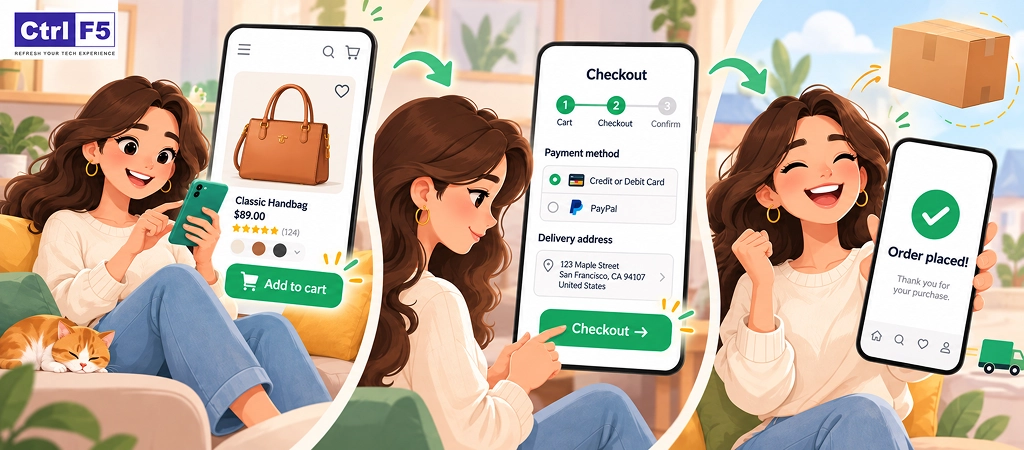
A shopper goes through three stages before an order is placed:
Every shopper who stops after stage one or stage two is counted as abandoned. You can see how many shoppers reached each stage in your Shopify analytics under the conversion funnel report.
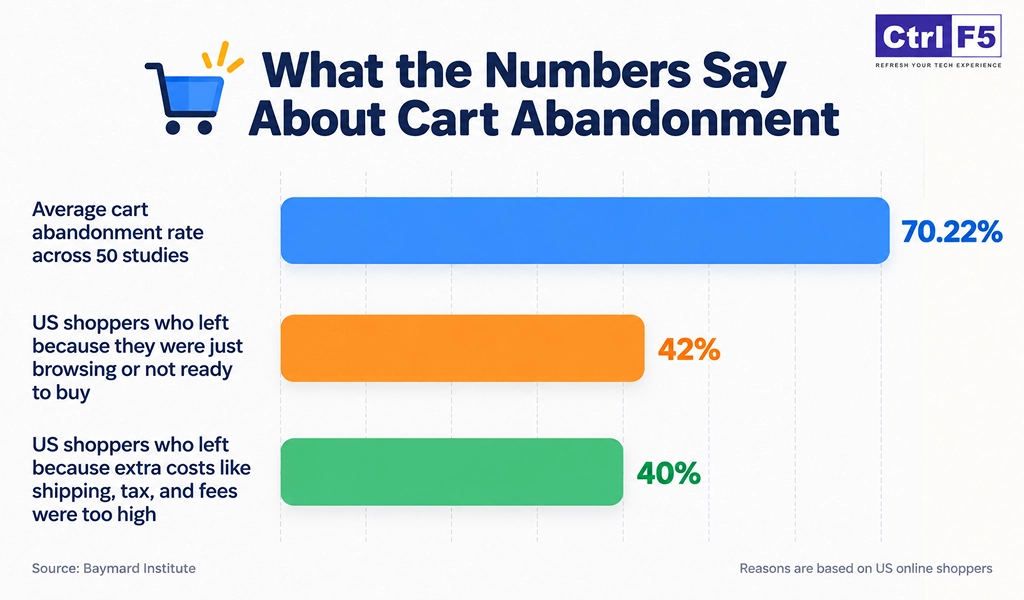
Let me put some numbers on this, so you know what is normal and what is worth fixing. These come from Baymard Institute, which has studied checkout behaviour for many years.
| What the research found | Figure |
| Average cart abandonment rate across 50 studies | 70.22% |
| US shoppers who abandoned a cart because they were just browsing or not ready to buy | 42% |
| US shoppers who left because extra costs like shipping, tax, and fees were too high | 40% |
Together, these three numbers tell one story. Abandonment is common, so seeing it on your Shopify store is not a failure. Nearly half of those shoppers were never ready to buy, which is the intent-based group I described above. Among the shoppers you can actually win back, surprise costs are the biggest reason, and that is why making your final price clear early is the first fix in this guide.
Source: Baymard Institute, cart abandonment statistics.
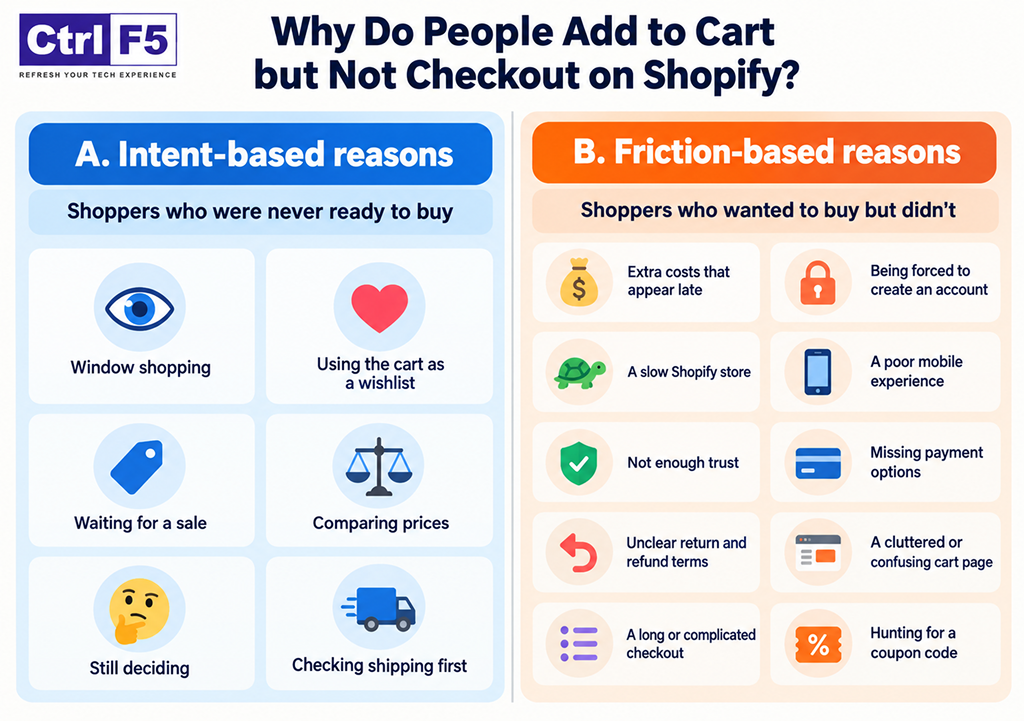
To understand why customers don’t checkout on Shopify, you first need to know whether they chose to leave or were pushed away. I have split the reasons into two groups, because each one needs a different response:
These shoppers are not frustrated. They simply were not buying today, and no amount of design work will change that.
This second group is where your effort pays off. These shoppers had real intent, and something on your Shopify store got in the way. Together, these obstacles make up what I call Shopify checkout friction.
Since most carts are opened on a phone, it also helps to optimize your ecommerce store for mobile users, with larger buttons, faster loading, and a checkout button that stays in view.
Not sure which of these is hurting your store?
ControlF5 can review your cart and checkout and show you where shoppers are dropping off.
Before fixing anything, find out which group is leaving. Otherwise you may offer a discount to someone who was stopped by a trust problem, or redesign a cart for people who were only browsing.
| Signal | Suggests window shopping | Suggests friction |
| Time on cart page | Very short | Long, with scrolling and hovering |
| Return visits | Comes back days later | Rarely returns |
| Where they exit | Cart page | Shipping or payment step |
| Device | Mixed | Often mobile |
| Cart contents | Several items, high value | Usually one intended purchase |
Here is how to gather this evidence:
You can’t force these shoppers to buy now, but you can make it easy for them to return and buy later.
Knowing the reasons is only half the job. The other half is making changes in your Shopify store, and the order matters. This is the practical side of Shopify CRO, so I suggest starting with the fixes that take the least time and affect the most shoppers.
Shopify’s admin menus get renamed now and then, so if a path below looks slightly different on your screen, search for the setting name in the admin search bar.
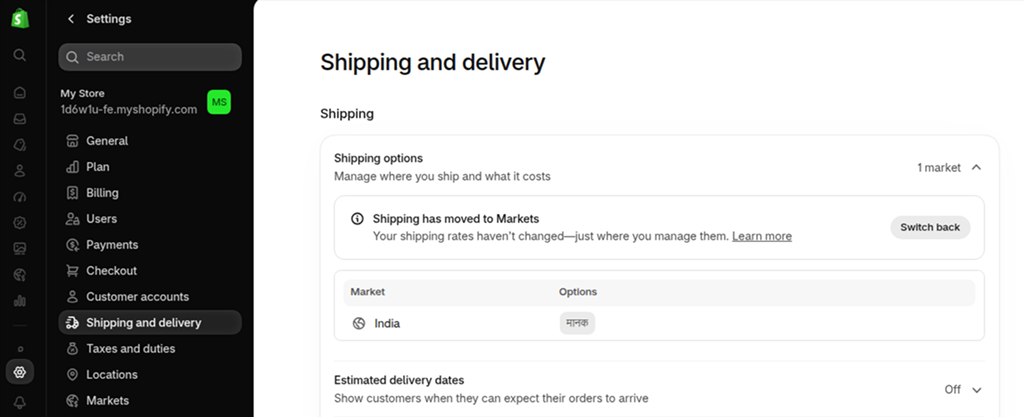
Open Settings > Shipping and delivery and review your shipping profiles. Decide on a flat rate or a free shipping threshold, and keep it simple enough to explain in one sentence. Then open Settings > Taxes and duties and check whether your prices should include tax. If they do, the number a shopper sees on the product page is close to what they pay.
Next, put that information where shoppers look before they click checkout. A short line under the price such as “Free delivery above ₹999, ships in 3 to 5 days” does more than a policy page nobody opens. A free shipping progress bar in the cart works even better, because it shows how far the shopper is from the threshold.
If your shipping rules are getting complicated, with different rates for different zones or live carrier pricing, the right Shopify shipping apps can show accurate delivery costs before the shopper reaches checkout.
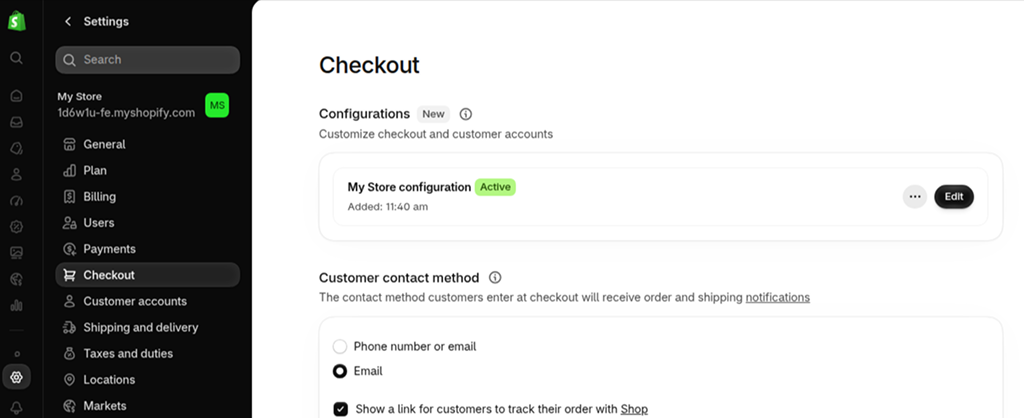
Go to Settings > Checkout and look at the customer accounts setting. Choose the option where accounts are optional. A shopper can then pay as a guest, and you can still invite them to create an account on the order confirmation page, when they have already bought and are far more willing.
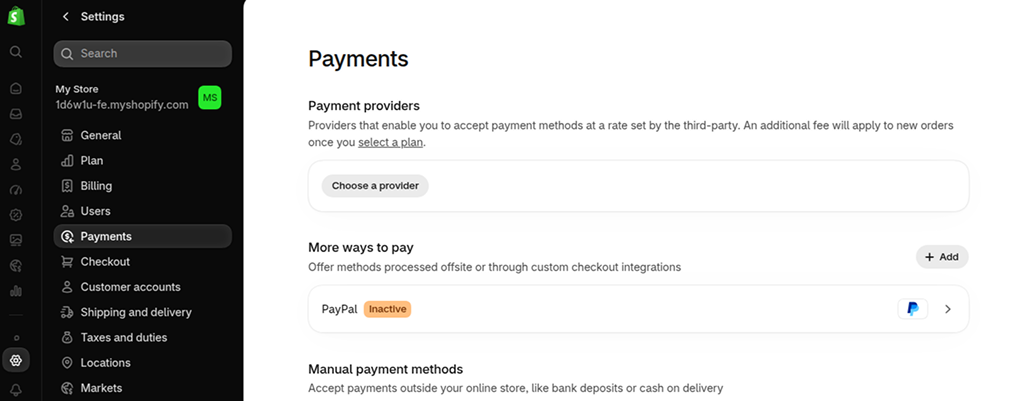
Open Settings > Payments and check what is active. Turn on the wallet options your payment provider supports, so returning shoppers can pay with a tap. For Indian stores, check whether your gateway supports UPI and whether cash on delivery makes sense for your products. COD brings its own risks, such as returns to origin, so many Shopify stores limit it to certain pin codes or order values.
A simple way to decide: ask your support team or look at your past orders and see how customers asked to pay. Add what they actually use, not every method available.
If you are not sure which provider fits your store, compare the top Shopify payment gateways in India for UPI support, wallets, COD, and transaction fees before you switch.
In your theme settings, look for the cart type option. Most modern themes let you choose between a cart page, a cart drawer, or a small notification. A cart drawer keeps the shopper on the same page and shows the checkout button right away.
Add proof near the add to cart button and in the cart, not only in the footer:
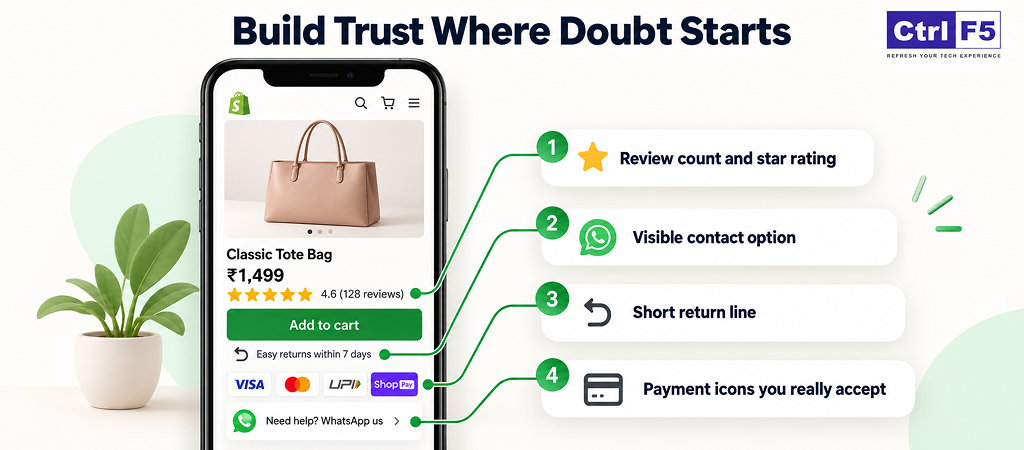
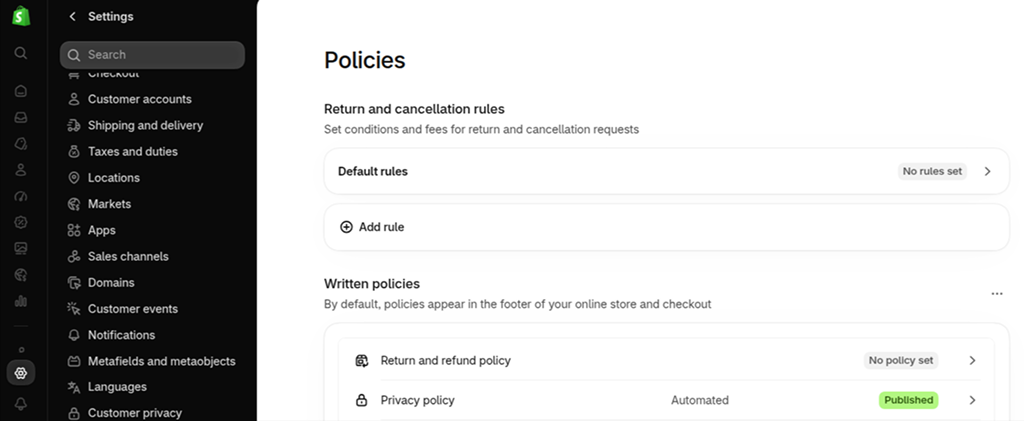
For the policy itself, go to Settings > Policies. Shopify gives you templates, but edit them to match your real process, because a copied policy that doesn’t match your practice creates problems later. On Shopify trust badges, use only the ones you have earned. A badge for a security check or certification you never completed misleads shoppers and can create legal trouble.
Open Online Store > Themes and check the speed score shown there. Then do three things in order:
If your store still feels slow after these basics, working on your Core Web Vitals scores will help the cart and checkout button respond faster, especially on mobile.
In Settings > Checkout, review which contact and address fields are required. Ask only for what you need to deliver the order. If you are on a plan that allows checkout customization, use the checkout editor to keep the page clean and the order summary clear.
For shoppers who leave without buying. You can send them a reminder, but only if you have their email or phone number.
Shoppers who reached checkout and typed their email: Shopify can send them a reminder for you. Go to Marketing > Automations and turn on Abandoned checkout.
Shoppers who left at the cart and typed nothing: You cannot message them yet. Ask for their email on the product page, for example with a “notify me when it is back in stock” box. Once they share it, you can send them a reminder too.
Short on time to fix all this yourself?
Leave the setup to ControlF5 and get your checkout working harder this month.
If you can only do a few things this week, work in this order:
| Priority | Change | Why it comes first |
| 1 | Shipping and tax clarity | Affects every shopper |
| 2 | Guest checkout | One setting, immediate effect |
| 3 | Payment methods | Removes a hard stop for shoppers who can’t pay their way |
| 4 | Mobile cart test | Finds problems you can’t see on a laptop |
| 5 | Trust elements | Needs content, so plan a little time |
| 6 | Recovery flows | Brings back what the other fixes miss |
Change one or two things at a time and compare your cart to checkout numbers before and after. That is the only way to know what actually worked.
Even when you know the causes and the fixes, a few habits can quietly undo your progress. These are the mistakes I see most often when Shopify store owners try to bring abandoned carts down.
Not every abandoned cart is a failure. Some shoppers were browsing, some were waiting for a sale, and some were simply not ready. Others were stopped by extra costs, a missing payment method, or a lack of trust, and those are the ones worth recovering.
Now that you know why customers don’t checkout on Shopify, start by finding where your funnel drops. Then decide whether the cause is intent or friction, and fix the biggest gap first. Small, steady improvements in your checkout will do more than any single big redesign.
If you want your Shopify store to turn more carts into paid orders, but you are not sure where the leak is, we can help you find it.
At ControlF5, our Shopify experts look at your cart, checkout, and shopper behaviour, then gives you a clear list of what to fix first.
Book a free consultation and let’s make your Shopify store work harder for every visitor you bring in.
Answer: It varies by industry, price range, and traffic source, so there is no single right number. Compare your Shopify store against its own past results and improve step by step instead of chasing a generic benchmark.
Answer: It can, because shoppers stay on the page and see their cart instantly. The result depends on the design. A clean drawer with a clear checkout button helps, while a crowded one can hurt.
Answer: Use abandoned cart emails, SMS, or WhatsApp reminders that show the items left behind and answer common doubts such as shipping and returns. Save discounts for shoppers who need a nudge, not everyone.
Answer: For most Shopify stores, yes. Optional accounts let shoppers pay quickly, and you can invite them to create an account after the order is placed, when they are more willing.
Answer: Compare your cart to checkout rate for mobile and desktop in Shopify analytics. If mobile is much lower, test the full purchase on your own phone and look for small buttons, slow loading, or a checkout button hidden below the screen.


Learn what average order value means, why it may be low, and 9 proven ways to increase it using Shopify’s built-in tools.
Is your Shopify store struggling to rank on Google? Discover common SEO problems affecting visibility and learn how to identify and fix indexing, technical, and content issues.
Is your Shopify store loading slowly? Explore 11 hidden causes that affect website speed and learn how to fix common performance issues.