

Table of Contents
ToggleSo your Shopify store is doing well domestically — great. But at some point, you start looking at your analytics and thinking, “Wait, why am I getting visitors from Germany, UAE, and Australia… and not selling to any of them?”
That’s exactly the problem Shopify Markets was built to solve.
Whether you’re on Shopify Advanced or you’ve leveled up to Shopify Plus, creating Markets is one of the most powerful moves you can make to unlock international revenue — without building a whole new store for every country. This guide breaks it down step by step, in plain English.
What Exactly Are Shopify Markets?
Before we get into the how, let’s get clear on the what.
Shopify Markets is a built-in tool that lets you sell to multiple countries and regions from a single Shopify store. Instead of managing five separate storefronts for five countries, you manage one store — but with different pricing, currencies, languages, and domains for each market.
Think of it like running one restaurant with separate menus for different neighborhoods. Same kitchen, different experience for each customer.
Here’s what Markets lets you control per region:
- Currency — show prices in local currency automatically
- Language — translate your storefront for each market
- Pricing — set different prices or add percentage adjustments by market
- Domain or subfolder — give each market its own URL (e.g., /en-ae or au.yourstore.com)
- Payment methods — offer locally preferred options (more on this below)
- Duties and taxes — show estimated import duties upfront to reduce cart abandonment
Who Gets What: Shopify Advanced vs Shopify Plus
Both plans support Shopify Markets — but Shopify Plus gives you significantly more control
| Feature | Shopify Advanced | Shopify Plus |
|---|---|---|
| Multiple Markets | ✅ Yes | ✅ Yes |
| Local currencies | ✅ Yes | ✅ Yes |
| Market-specific pricing | ✅ Yes | ✅ Yes |
| Custom domains per market | ✅ Yes | ✅ Yes |
| Translated storefronts | ✅ Yes | ✅ Yes |
| B2B Markets | ❌ No | ✅ Yes |
| Expansion Stores (up to 9) | ❌ No | ✅ Yes |
| Checkout customization per market | Limited | ✅ Full |
| Max markets | 3 Markets | 50 Markets |
How to Create Markets in Shopify (Step-by-Step)
Let’s get into it. Whether you’re on Advanced or Plus, the core setup lives in the same place.
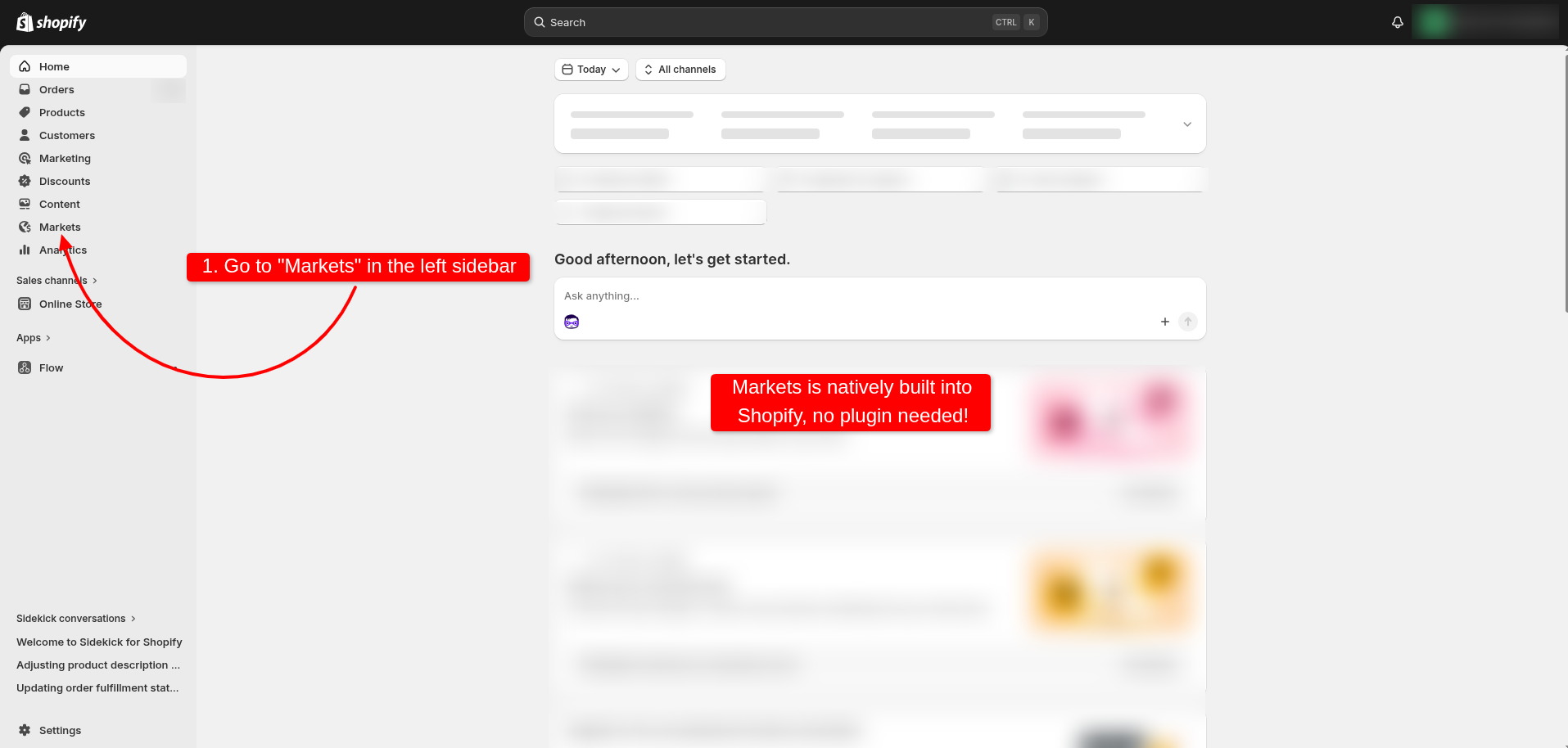
Step 1: Go to Your Markets Settings
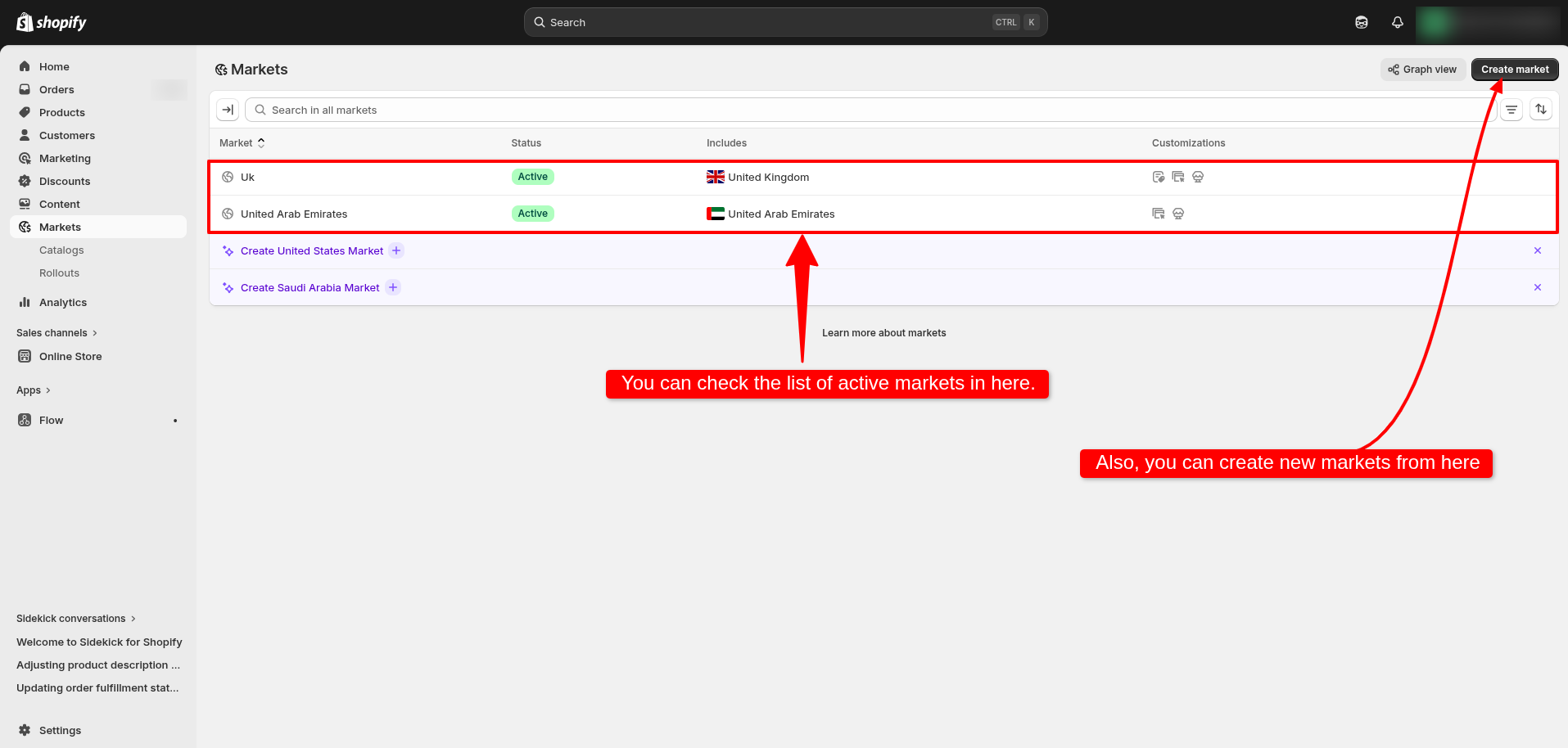
Log into your Shopify admin. Head to Settings → Markets. You’ll see your current markets. By default, Shopify sets your home country as your primary market.
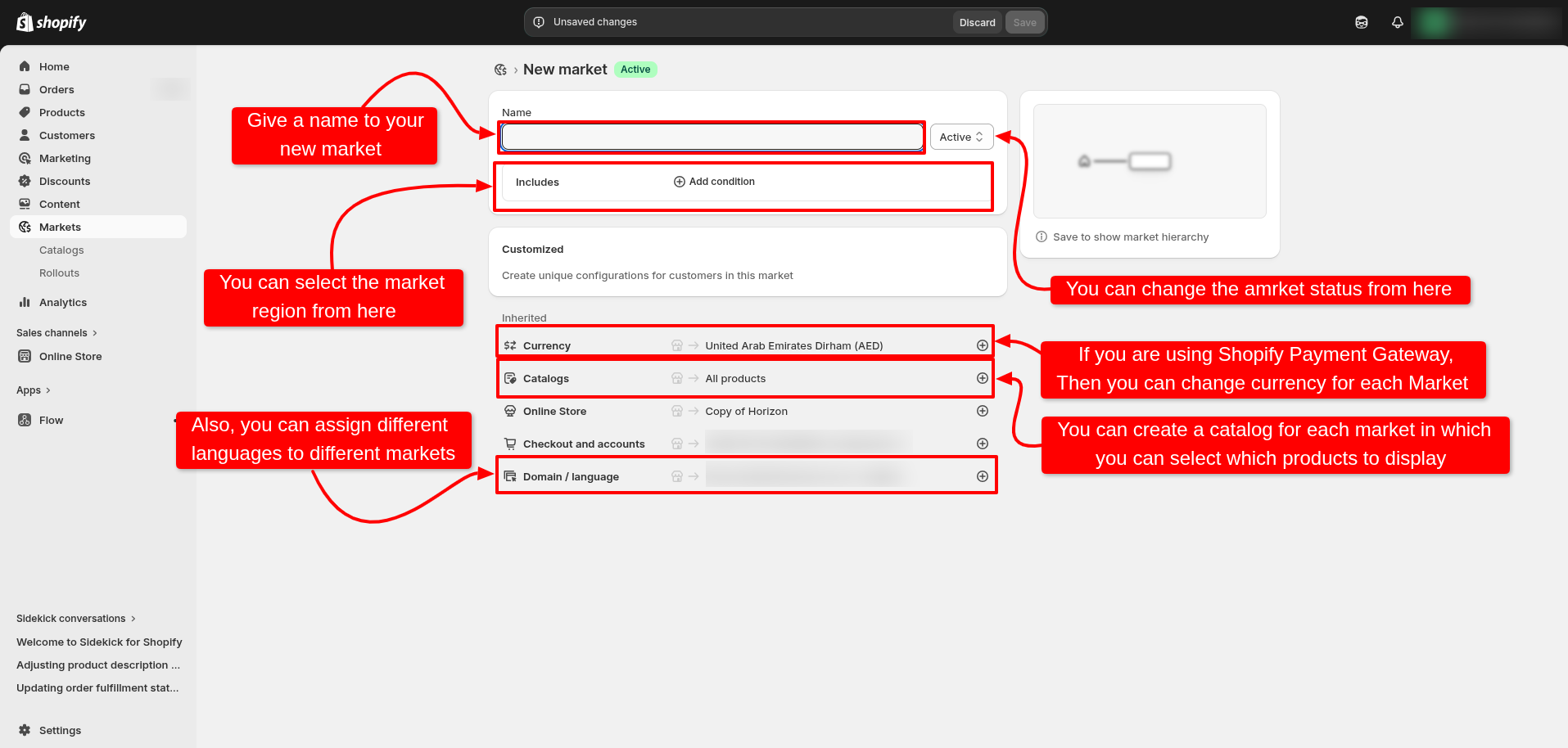
Step 2: Add a New Market
Click “Add market” in the top right. You’ll be asked to:
Name your market — internal label like “Europe” or “Middle East”
Select countries or regions — you can group multiple countries together for consistent settings
Step 3: Set Up Currency and Pricing
Shopify will auto-convert your home currency using live exchange rates. But here’s where it gets smart:
- Add a price adjustment — bump up prices by a fixed % to account for duties or shipping
- Set manual prices — Shopify Plus merchants can set specific prices per product per market
💡Pro tip: Auto-converted prices often look weird ($47.99 → €43.73). Always clean up pricing so it reads naturally in each market.
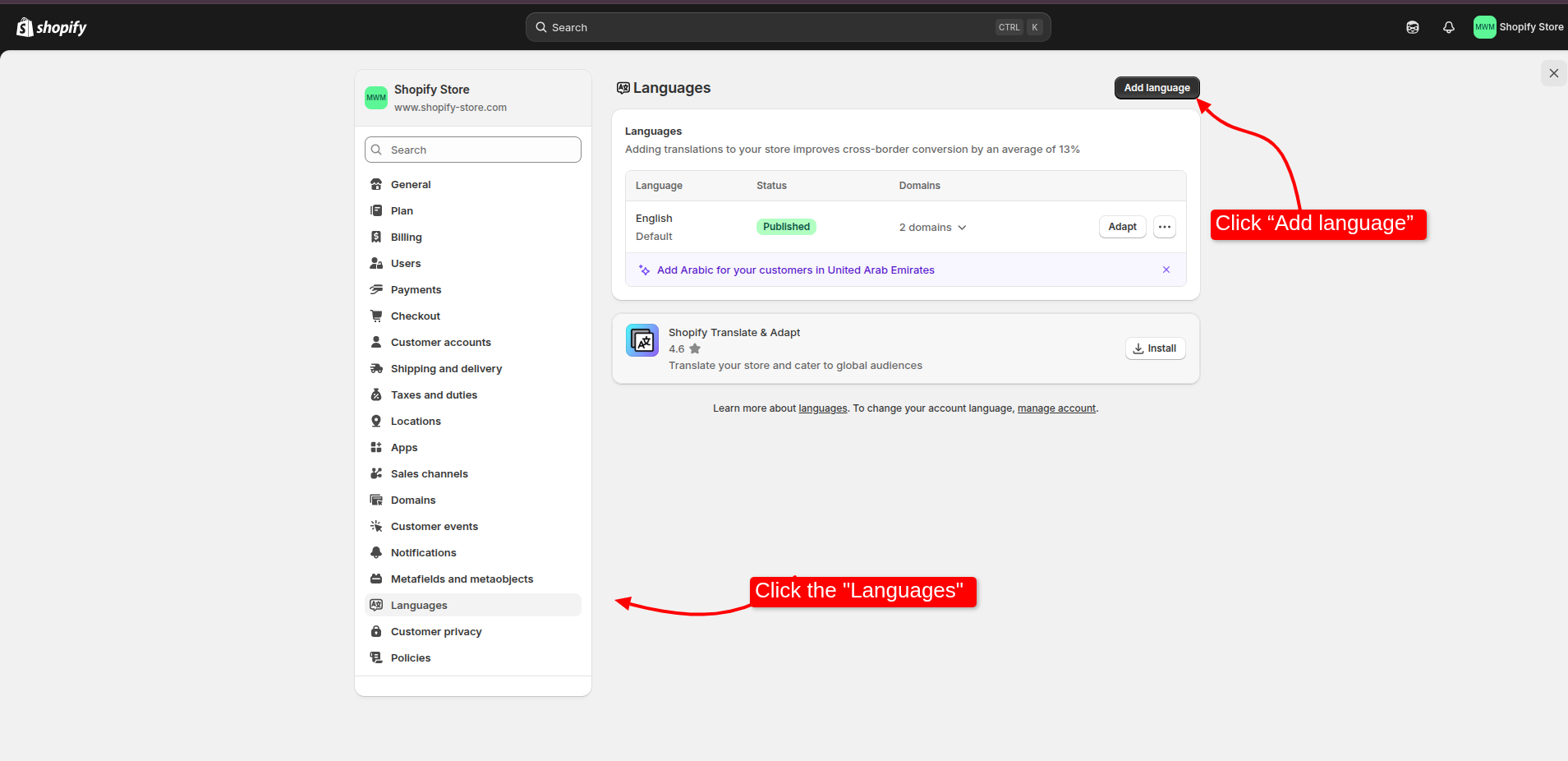
Step 4: Set Up Language
Click the “Languages” section within your market settings. Shopify serves the right language based on the customer’s browser settings. You’ll need a translation app like Weglot or use Shopify’s native features to actually translate your content.
If you’re entering a non-English market — France, Germany, Japan, UAE — a translated storefront isn’t optional. It’s table stakes.
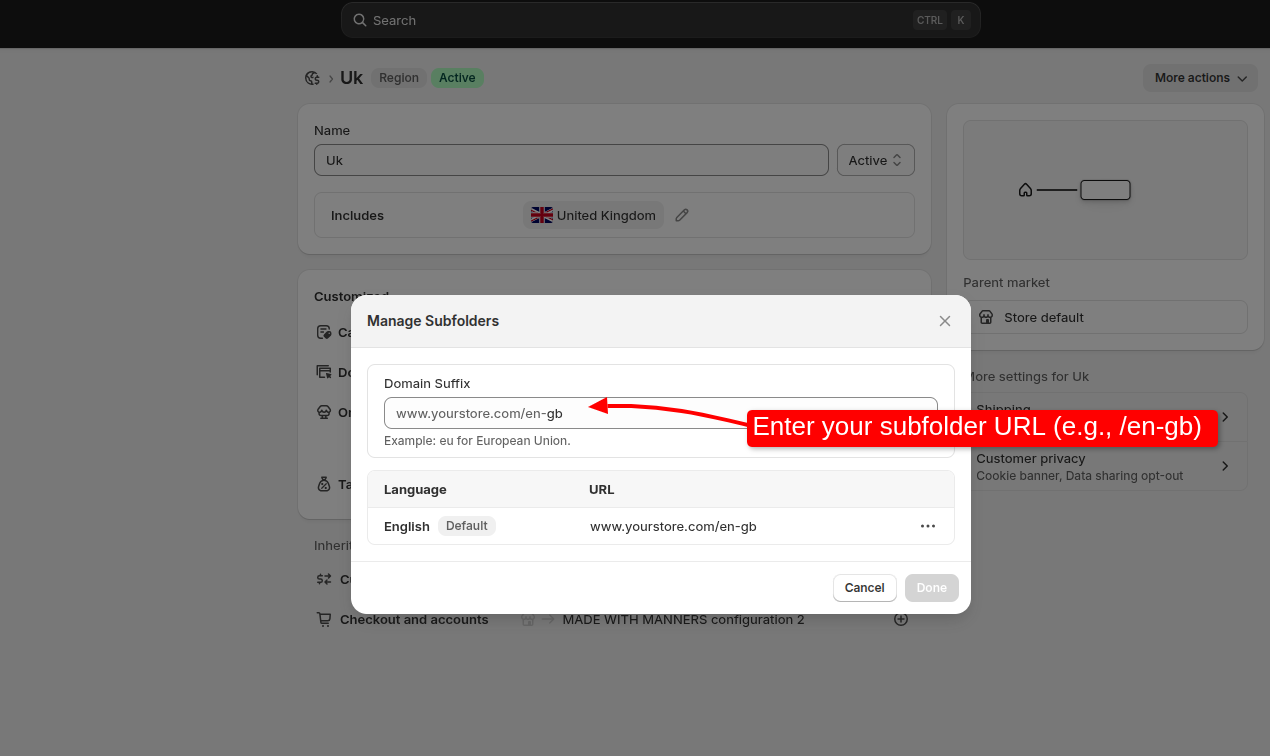
Step 5: Configure Your Domain Structure
Under Domains, choose your URL structure:
- Subfolder — yourstore.com/en-de (easiest, great for SEO)
- Subdomain — de.yourstore.com (good middle ground)
- Country TLD — yourstore.de (most trust-building, requires domain purchase)
For most brands starting out internationally, subfolders are the lowest-effort, highest-SEO-value option.
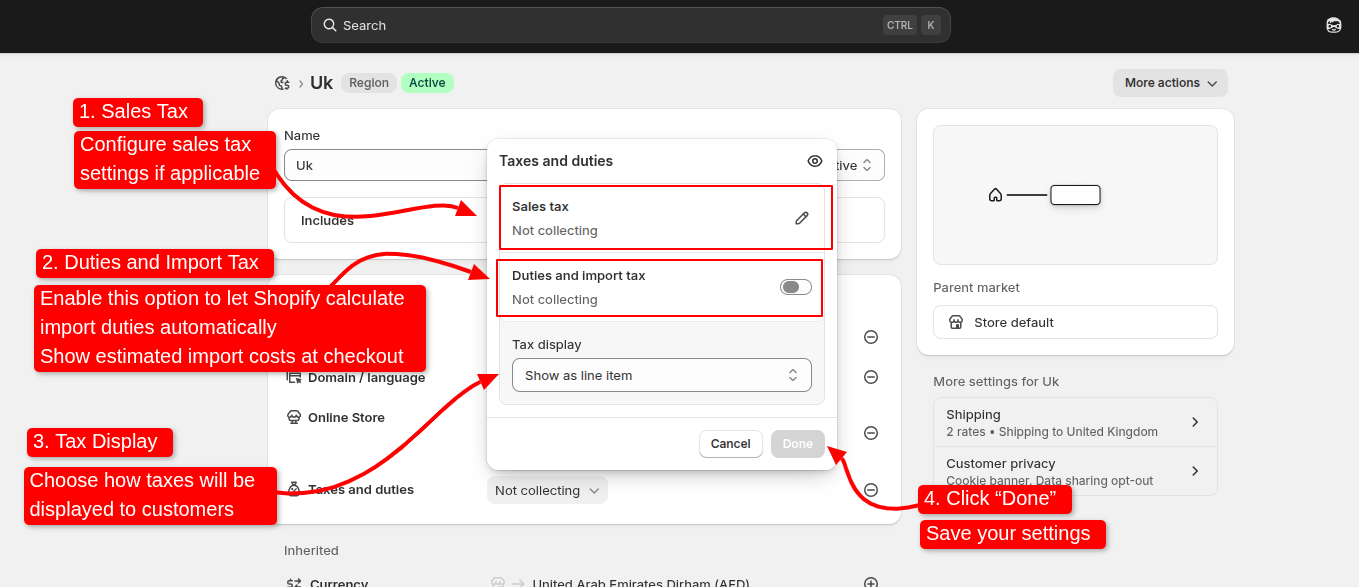
Step 6: Set Duties and Tax Settings
Under “Duties and import taxes“, enable Shopify’s built-in duty calculation — it shows customers an estimate of import costs at checkout. This reduces post-purchase surprises and cart abandonment, especially for cross-border orders.
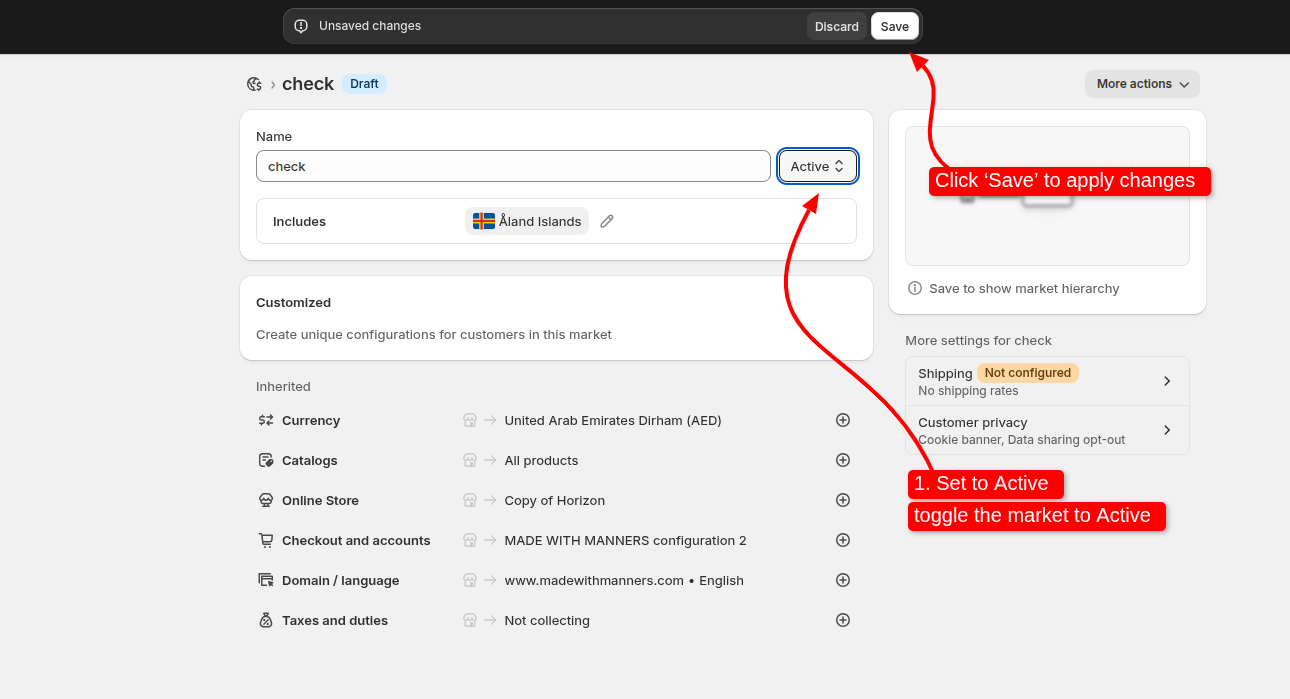
Step 7: Activate the Market
Once everything’s configured, toggle the market to Active. Done — your international storefront is live.
⚠️ Critical: Want Country-Specific Checkout? You Need Shopify Payments
This is one of the most overlooked details in Shopify Markets setup. Third-party gateways like Stripe-only or custom payment providers don’t integrate at the Markets level — meaning you lose that automatic, country-aware checkout behavior.
Read our full guide: Shopify Payments + Markets: How to Show the Right Payment Methods by Country
Shopify Plus: Going Further with Expansion Stores and B2B Markets
If you’re on Shopify Plus, you’ve got two extra tools worth knowing about.
Expansion Stores
Shopify Plus gives you up to 9 expansion stores included in your plan. These are fully separate Shopify stores managed under one Plus organization account. Use expansion stores when:
- The market needs a completely different brand or product line
- A country requires a fully localized experience your main store can’t accommodate
- You need separate B2C and B2B storefronts
Think of Markets as the smart default, and expansion stores as the escape hatch when Markets isn’t enough.
B2B Markets on Shopify Plus
Shopify Plus also supports B2B selling through Markets — meaning you can create a market specifically for wholesale or business customers, with:
- Company accounts and net payment terms
- Customer-specific pricing catalogs
- Custom checkout with purchase order support
- Separate storefront from your D2C experience
Common Mistakes to Avoid
- Not adjusting prices properly. Raw currency conversion leaves ugly prices and unprofitable margins.
- Ignoring language. Launching a “German market” in English is just disappointing German customers.
- Over-grouping regions. Putting Brazil and Japan in “Rest of World” means settings are a compromise for everyone.
- Not testing. Always preview your market from a customer’s perspective before going live.
FAQs
Can I use Shopify Markets on the Basic plan?
Basic Shopify allows ome market features, but the full suite — including market-specific pricing and multi-currency — requires at least Shopify Advanced or higher.
How many markets can I create?
Is Shopify Markets free?
Final Thoughts
Setting up Shopify Markets isn’t complicated — but doing it right takes a bit of thought upfront. Get your pricing, language, and domain structure sorted before you go live, and you’ll have a genuinely localized experience that international customers actually trust.
The world’s a big market. Your Shopify store can reach all of it.