




Table of Contents
ToggleHere’s something a lot of Shopify merchants figure out the hard way: setting up Shopify Markets gets you localized pricing and language — but if you want checkout to actually show different payment methods based on the customer’s country, that’s a separate piece of the puzzle entirely.
And the answer is surprisingly simple: you need to be using Shopify Payments as your gateway. No workaround, no plugin — that’s the requirement. Let’s break down exactly why, and how to set it up properly.
Why Payment Methods Matter in International Markets
Think about how you pay online. If you’re in Germany, you probably expect to see SEPA or Klarna. In Australia, AfterPay is almost expected. In the US, Shop Pay, Apple Pay, and Google Pay are standard.
When international customers hit your checkout and only see a generic credit card form — no local BNPL, no familiar wallet — conversion tanks. It feels foreign. Untrustworthy. Like the store wasn’t really built for them.
This is why pairing Shopify Markets with Shopify Payments is the right move if you’re serious about international selling. Not just for the currency — for the full checkout experience.
New to Shopify Markets? Start here first: How to Create Markets in Shopify & Shopify Plus (Complete Guide)
What Shopify Payments Unlocks That Third-Party Gateways Don't
| Feature | Third-Party Gateway (e.g., Stripe only) |
Shopify Payments |
|---|---|---|
| Local currency display | ✅ Visual only | ✅ Actual local settlement |
| Auto local payment methods by country | ❌ No | ✅ Yes |
| Shop Pay accelerated checkout | ❌ No | ✅ Yes |
| Apple Pay / Google Pay | ❌ No | ✅ Yes |
| Klarna, AfterPay (BNPL) | ❌ No | ✅ Per market |
| Automatic fraud filters per region | ❌ No | ✅ Yes |
| Market-level payment customization (Plus) | ❌ No | ✅ Yes |
The key thing to understand: third-party gateways don’t integrate at the Markets level. So even if you’ve set up perfect market regions in Shopify, your checkout will still show a generic payment experience. Shopify Payments is what bridges them together.
Which Local Payment Methods Does Shopify Payments Support?
Here’s a breakdown of what customers will see automatically when you’re using Shopify Payments with Markets activated:
| Country / Region | Local Payment Methods Available |
|---|---|
| 🇩🇪 Germany | SEPA Direct Debit, Klarna, Giropay |
| 🇦🇺 Australia | AfterPay, Apple Pay, Google Pay |
| 🇺🇸 USA | Shop Pay, Apple Pay, Google Pay, Affirm, Klarna |
| 🇬🇧 UK | Klarna, Shop Pay, Apple Pay, Google Pay |
| 🇸🇪 Sweden | Klarna (home market), Swish |
| 🇳🇱 Netherlands | iDEAL, Klarna |
| 🇫🇷 France | Klarna, Apple Pay, Google Pay |
| 🇸🇬 Singapore | PayNow, GrabPay (via partners) |
| 🇦🇪 UAE / GCC | Limited — see note below |
Step-by-Step: Setting Up Shopify Payments with Markets
Step 1: Enable Shopify Payments
Go to Settings → Payments → Shopify Payments and click “Complete account setup”. You’ll need to verify your business details, bank account, and identity — standard stuff.
Once approved, Shopify Payments becomes your primary gateway and third-party gateways become secondary (you can still keep PayPal as an option alongside it).
Step 2: Set Up Your Markets (if you haven't already)
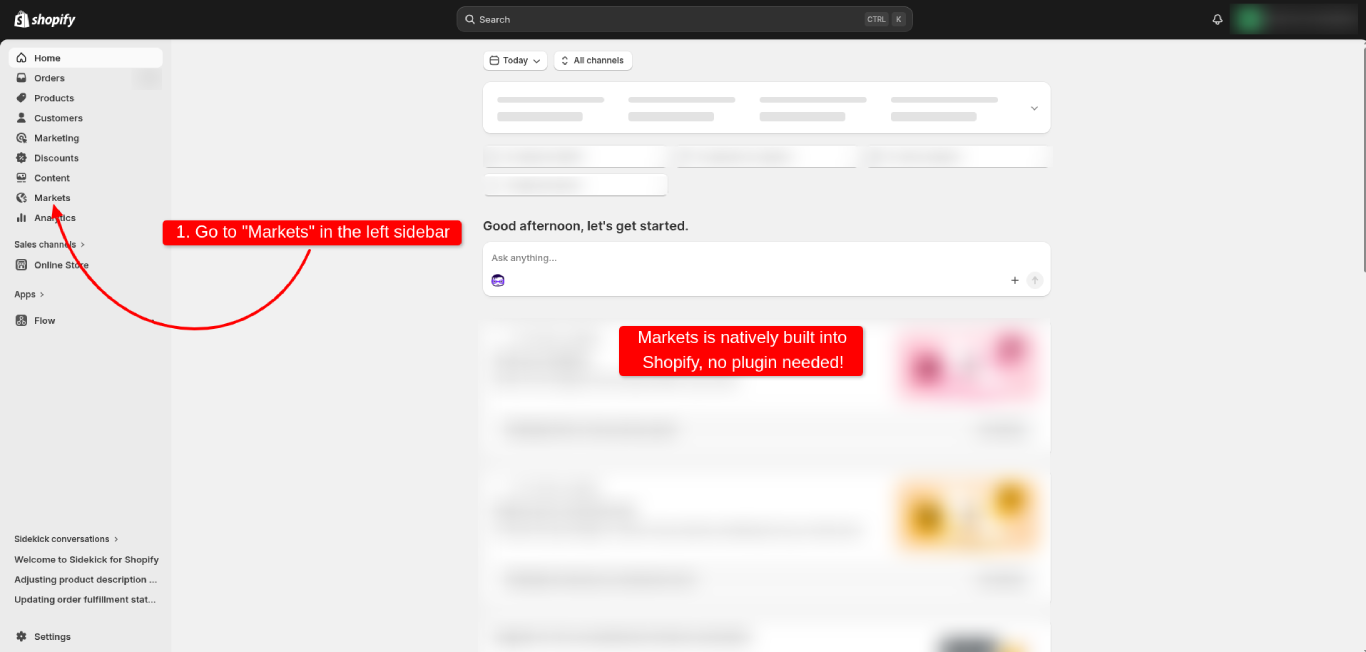
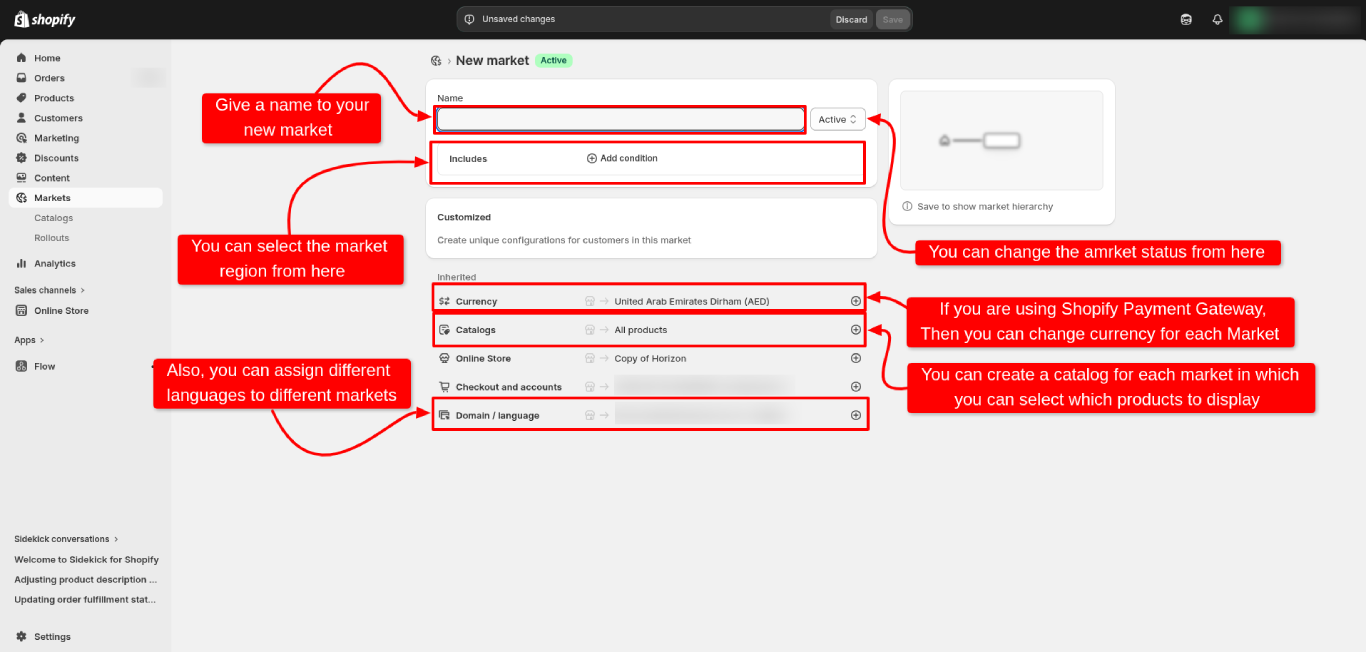
Head to Settings → Markets and create your international markets with the right countries, currencies, and languages. Full Markets setup guide here →
Step 3: Review Payment Providers Per Market
Inside each market, go to Payment methods. You’ll see a list of payment providers that are available for that market. With Shopify Payments active, local methods will already appear here automatically for supported countries.
You can toggle individual payment methods on or off per market — useful if you want to disable BNPL in certain regions for brand or margin reasons.
Step 4: Enable Accelerated Checkouts
In Settings → Payments → Accelerated checkouts, make sure Shop Pay, Apple Pay, and Google Pay are all toggled on. These will then appear automatically on product pages and at checkout for eligible markets.
Step 5: Test the Checkout by Market
- Currency shows correctly in local denomination
- Payment methods reflect what’s locally expected
- BNPL options (Klarna, AfterPay) appear where applicable
- Accelerated checkouts (Shop Pay, Apple Pay) render on the checkout page
What If Shopify Payments Isn't Available in Your Country?
This is a real limitation — and it affects merchants based in India, UAE, Pakistan, many African countries, and parts of Southeast Asia.
If your store’s home country isn’t in Shopify Payments’ supported list, you have a few options:
Option 1: Use a Third-Party Gateway + Manual Payment Method Configuration
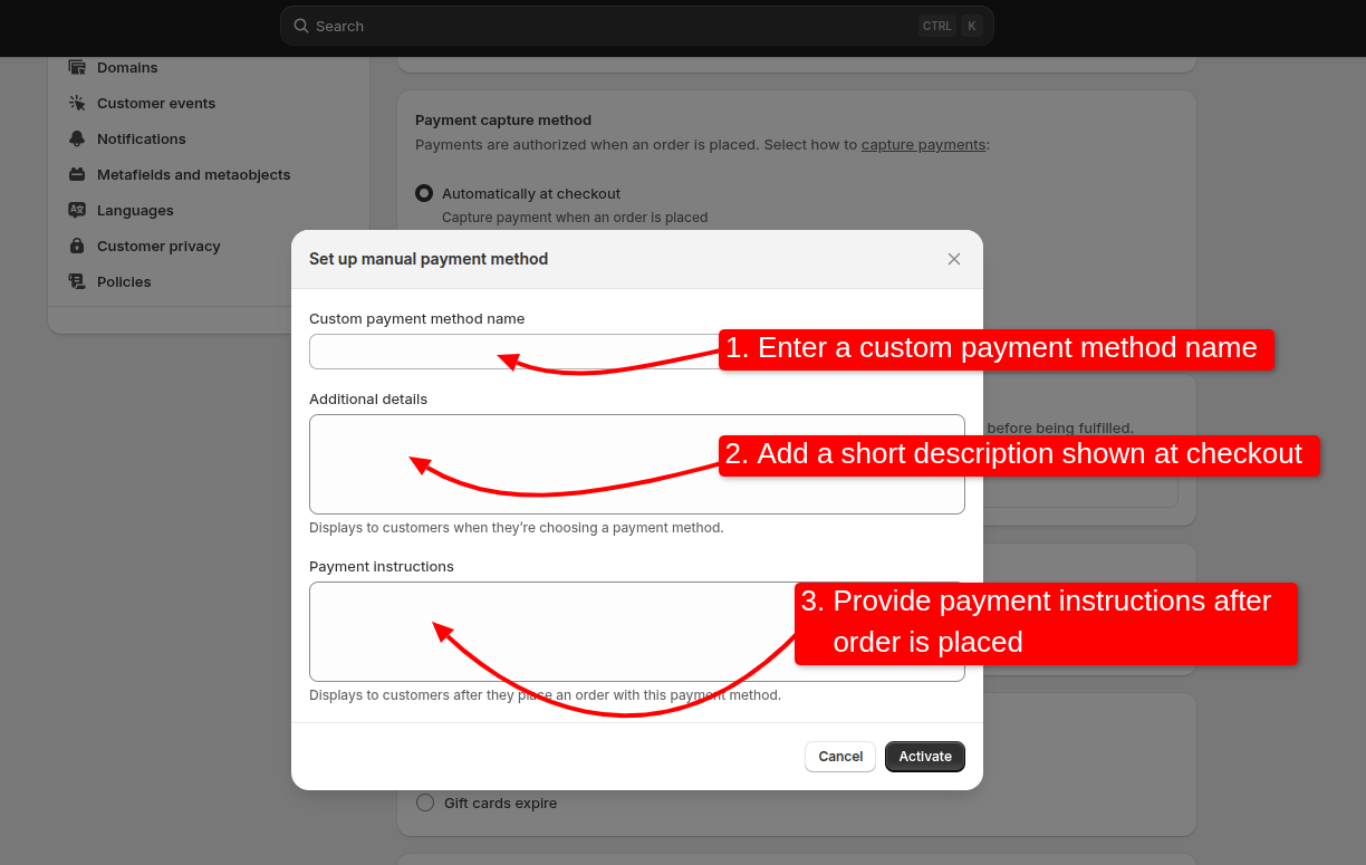
You can use a gateway like Razorpay, PayTabs, or Telr for your home market, and then manually add specific payment methods for international markets using Shopify’s additional payment providers list.
The downside: you won’t get the seamless, auto-detected local payment experience. You’ll need to configure each method manually and the checkout experience is less polished.
Option 2: Shopify Plus — Custom Checkout with Checkout Extensibility
If you’re on Shopify Plus, you can use Checkout Extensibility to build custom payment logic per market — showing different options based on customer location, even without Shopify Payments as your primary gateway.
This requires developer resources, but it’s a real solution for Plus merchants in unsupported regions.
Option 3: Expansion Store with Shopify Payments
Shopify Plus: Even More Payment Control Per Market
If you’re on Plus, Shopify Payments + Markets opens up an additional layer of control through Checkout Extensibility:
- Hide payment methods per market (e.g., don’t show BNPL in certain regions)
- Custom payment messaging — show localized text around payment options
- Conditional payment display based on cart value or customer tags
- B2B payment terms — net payment options for wholesale markets
For brands with complex international operations, this level of checkout control is a genuine competitive advantage.
FAQs
Can I use Stripe AND Shopify Payments together?
Do I pay extra for Shopify Payments?
Does Shopify Payments support B2B transactions?
Final Thoughts
Shopify Markets is one of the best tools for going global — but it only reaches its full potential when paired with Shopify Payments. Together, they give your international customers a checkout that feels native: right currency, right payment methods, right experience.
If you haven’t set up your Markets yet, start with our full guide: How to Create Markets in Shopify & Shopify Plus →
Get both pieces right and you’ll stop losing international customers at the final step.