



Two Shopify stores on our client list run the same Shopify theme. One installs every new version within days of its release, checks the preview and publishes it without a second thought. The other has refused to touch updates ever since its last attempt quietly erased the product tabs, the size chart and the trust badges that customers relied on before buying.
When the owner of the second Shopify store first reached out to us, he was convinced the Shopify theme itself was faulty. It wasn’t. Both Shopify stores are heavily customized, both worked with capable Shopify developers, and both run Shopify apps for reviews and upsells. The only real difference is where those customizations were made. In the first Shopify store, almost every change sits in places Shopify carries forward. In the second, the changes were written straight into files that every new version replaces.
That is the part most Shopify store owners are never told. Done the right way, Shopify theme customization never has to stand in the way of Shopify theme updates, and you don’t have to choose between a Shopify store that looks exactly how you want and a Shopify store that stays current.
In this blog, I’ll explain what really happens during an update, what survives and what doesn’t, and the exact rules and steps my team follows to keep customized Shopify themes easy to update.
Every Shopify theme in the Shopify Theme Store is built and maintained by a Shopify theme developer. Dawn is made by Shopify itself, while Shopify themes like Prestige, Impulse and Symmetry come from independent design studios.
These Shopify developers keep releasing new versions of their themes to fix bugs, improve page speed, add fresh sections and support new features from releases like the Shopify Winter ’26 Edition.
When a new version is ready, Shopify shows a notification in your Shopify theme library under Online Store > Themes. You can open it, read the release notes and decide when to install it. Each Shopify theme also displays its current version number, so you always know how far behind you are.
What happens next depends on one thing: whether anyone has touched the Shopify theme code.
To understand Shopify theme updates properly, picture your Shopify theme as two layers sitting on top of each other.
The first layer is your settings and content. Every time you change a color, pick a font, add a section or type a heading inside the Shopify theme editor, Shopify saves that choice in configuration files. The main ones are settings_data.json and the JSON files inside the templates folder.
The second layer is the code. These are the Liquid, CSS and JavaScript files that decide how the Shopify store looks and behaves. You see them when you open the Shopify theme code editor through Online Store > Themes > Edit code. Here is what each folder in that editor holds:
| Folder | What it holds | Usually changed through |
| layout | theme.liquid, the master frame that wraps every page | Code editor |
| templates | JSON files that list which sections appear on each page type | Theme editor |
| sections | Liquid files for each section, such as the header, footer or featured collection | Code editor |
| snippets | Small reusable pieces of Liquid, such as a price label or a product card | Code editor |
| assets | CSS, JavaScript, icons and fonts | Code editor |
| config | settings_schema.json (which options exist) and settings_data.json (which options you picked) | Both |
| locales | Text for buttons and labels in each language | Both |
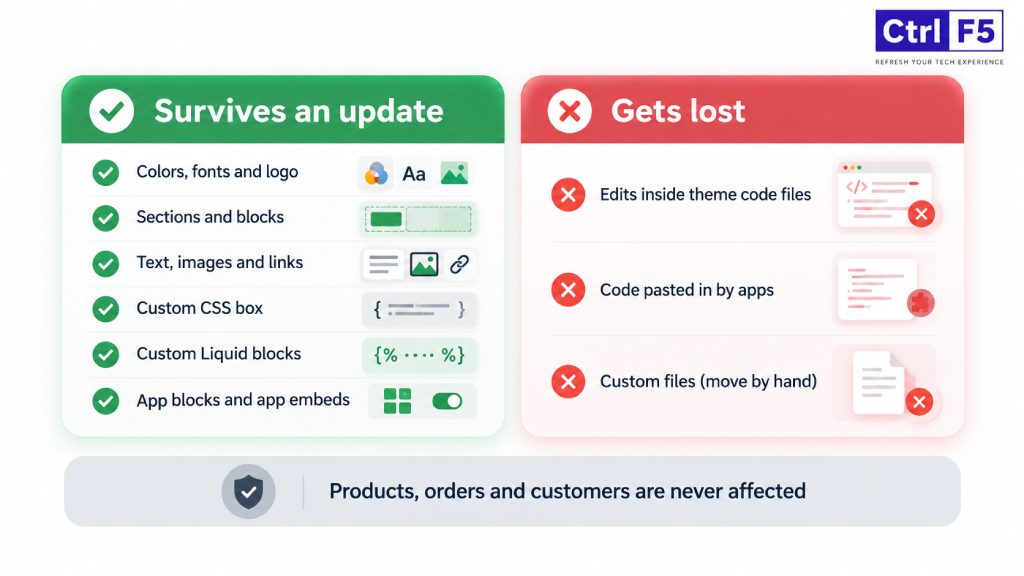
Shopify protects the first layer during an update. The second layer gets replaced with the Shopify developer’s new files. That single fact explains every lost customization I have ever been asked to recover.
Anything you set through the theme editor travels with you to the new version. Anything typed directly into Shopify theme files does not.
A skincare brand once came to us after an update wiped out the ingredient tabs on every product page. A freelancer had built those tabs by editing the main product section file. Nothing was wrong with the tabs themselves. They simply lived in a file that the update replaced, so they vanished the moment the new version went live.
Here is a clear picture of what survives and what doesn’t:
| Change | Where Shopify stores it | After the update |
| Colors, fonts, logo and spacing chosen in Shopify theme settings | Settings files | Kept |
| Sections and blocks added, removed or rearranged in the Shopify theme editor | Template JSON files | Kept |
| Text, images and links typed into sections | Template JSON files | Kept |
| Code added in the Custom CSS box of the Shopify theme editor | Settings files | Kept |
| Code pasted into a Custom Liquid section or block | Template JSON files | Kept |
| App blocks and app embeds switched on in the Shopify theme editor | Settings files | Kept |
| Edits made inside existing Liquid, CSS or JavaScript files | Theme code | Lost |
| New section or snippet files you created | Theme code | Not copied, must be moved by hand |
| Code an app pasted into your Shopify theme files | Theme code | Lost |
| Products, collections, orders, customers, pages and blog posts | Shopify admin, outside the Shopify theme | Never affected |
New files you created are still code, so Shopify won’t copy them into the new version on its own. The good news is that because they sit in their own files, moving them takes minutes instead of days.
Your Shopify store data is never at risk. A Shopify theme only controls how your Shopify store looks. Your products, orders and customers live in the Shopify admin, and no Shopify theme update can touch them.
After losing customizations once, many Shopify store owners decide never to update again. It feels safe, but an old Shopify theme slowly costs you speed, features and support.
The problem is that an old Shopify theme stands still while everything around it keeps moving. Shopify keeps adding features, Shopify apps keep changing how they connect to Shopify themes, and the Shopify theme developer keeps fixing issues your Shopify store may already be facing.
Here is what you give up when you stay on an old version:
So the goal is not to avoid Shopify theme updates. The goal is to customize in a way that makes them painless.
To customize your Shopify theme safely, keep as many changes as possible in the settings layer, and keep the rest of your code small, separate and recorded. These are the six rules my team follows on every Shopify theme customization project.
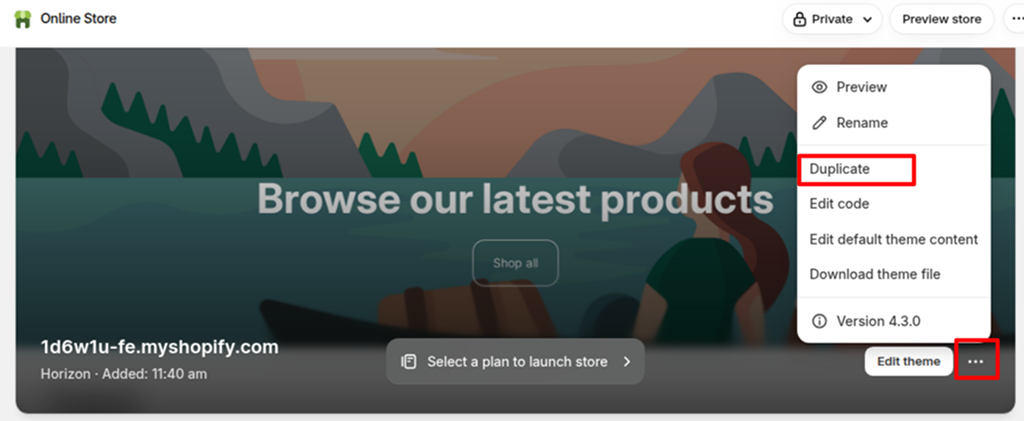
Before you change anything, go to Online Store > Themes, open the actions menu next to your live Shopify theme and click Duplicate. Make your changes on the copy, preview them, and publish only when everything looks right.
This gives you two protections at once. Your customers never see a half finished change, and you always have a working backup sitting in the Shopify theme library.
Code is unforgiving on a live Shopify store. A single missing bracket can hide the Add to Cart button or break the product page, and every visitor sees the problem until someone fixes it. On a duplicate, the same mistake shows up only in your preview, where it costs nothing.
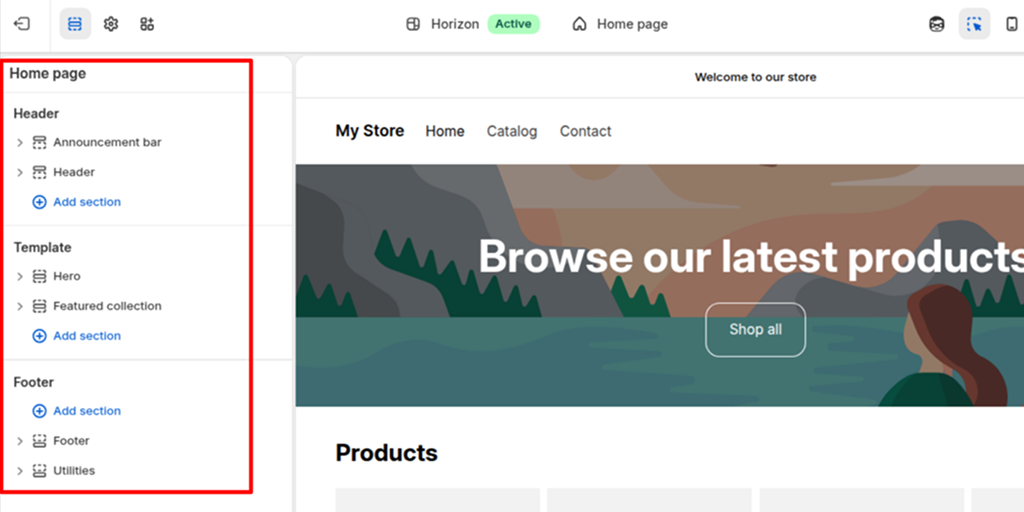
Modern Shopify themes (often called Online Store 2.0 themes) put a lot of power inside the Shopify theme editor. Before asking anyone to write code, check whether the editor can already do what you need. Everything done here survives updates automatically.
A few changes people often pay Shopify developers for, which the editor can handle on its own:
Older Shopify apps used to ask you to paste their code into your product template or theme.liquid, and some injected it automatically. That code disappears on the next update. Worse, it often stays behind as dead code after you uninstall the Shopify app.
Modern Shopify apps use Shopify theme app extensions instead. These come in two forms:
Both are stored as settings, so they carry over to new Shopify theme versions. Before installing a Shopify app, ask its support team one simple question: does your Shopify app use app blocks, or does it edit my Shopify theme files?
Some features genuinely need code. That is fine. What matters is where the code lives. Shopify liquid customization becomes update-friendly when your work sits in its own files instead of being mixed into the Shopify developer’s files.
Liquid is the template language Shopify themes are written in. It pulls Shopify store data like product titles and prices into your pages. You can write it in three places that keep updates simple.
Shopify custom sections are new section files you create yourself. In the Shopify theme code editor, open the sections folder, click Add a new section and give it a clear name such as custom_size_chart. Add a schema to the file, and the section appears in the Shopify theme editor like any other, ready to be placed on any page.
Snippets work the same way for smaller pieces. You build the snippet in its own file, then call it from the Shopify theme with one short line:
| {% render ‘trust_badges’ %} |
That one line is the only change inside the Shopify developer’s file. Everything else is yours and easy to move.
Instead of adding your styles to the Shopify theme’s main stylesheet, create a file such as custom.css in the assets folder and link it once in theme.liquid. All your style changes then live in one place. For only a handful of lines, the Custom CSS box in Shopify theme settings is even better, since it survives updates without any copying.
Most modern Shopify themes include a Custom Liquid section and block in the Shopify theme editor. You can paste small pieces of Liquid or HTML into it, such as a delivery estimate message or an embedded form. Because the code is saved as a setting, it moves to new versions automatically.
If you have used WordPress, you may be looking for a child theme. In WordPress, a child theme sits on top of a parent theme and holds only your changes, so the parent can update freely underneath it.
Shopify has no official Shopify child theme system. A theme cannot inherit from another theme. The approach above is the closest you can get: settings in the editor, custom code in its own files, and only tiny, recorded edits inside the Shopify developer’s files.
Keep a simple change log for your Shopify theme. A spreadsheet is enough. When an update arrives, this log becomes your checklist.
| Date | File | What changed | Why |
| 12 Aug | sections/custom_size_chart.liquid | New file | Size chart for apparel products |
| 12 Aug | layout/theme.liquid | Added one line linking custom.css | Load custom styles |
| 20 Aug | Product card snippet | Added discount percentage label | Show savings on collection pages |
It also helps to mark your edits inside the code itself with Liquid comment tags, like this:
| {% comment %} ControlF5 custom: discount label {% endcomment %} |
Now anyone opening the file can find your changes in seconds.
For Shopify stores with a lot of custom code, a spreadsheet is not enough. This is where version control helps.
Shopify lets you connect a Shopify theme to a GitHub repository straight from the Shopify theme library. Every change is then saved with a record of what changed and when. Shopify developers can also use Shopify CLI to download the Shopify theme to their computer, work on it and push it back.
The real benefit shows up during an update. Your Shopify developer can compare your customized version with the Shopify developer’s new version file by file and see exactly which lines need to be reapplied. Nothing gets missed.
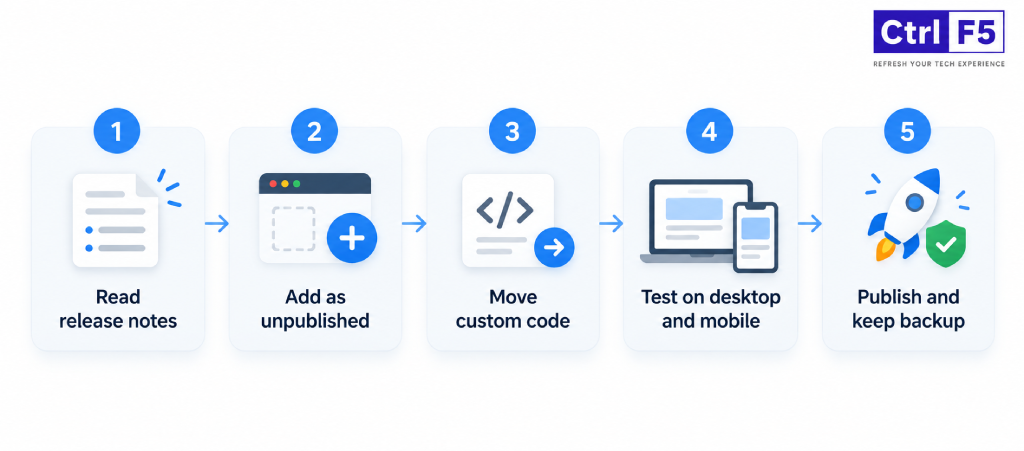
If you have followed the rules above, an update becomes a calm, predictable job. This is the exact process we use at ControlF5.
Open the update notification in your Shopify theme library and click to view the release notes. They tell you what the Shopify developer changed, fixed or added. Compare that list with your change log. If the Shopify developer rewrote a section you also edited, expect a little more work on that file.
Click Add to Shopify theme library. Shopify installs the new version as a separate, unpublished Shopify theme and copies your Shopify theme editor settings into it. Your live Shopify store is not touched. For a Shopify theme bought outside the Shopify Theme Store, download the new version from the Shopify developer and upload it as a new Shopify theme.
Open the old Shopify theme and the new Shopify theme in the Shopify theme code editor, each in its own browser tab. Then work through your change log line by line:
One rule matters more than all the others here. Never paste a whole old file over the new one. That throws away every fix the Shopify developer just shipped in that file. Add only your own lines.
Preview the new Shopify theme and click through the Shopify store the way a customer would. At a minimum, check:
Publish the new Shopify theme during a quiet period, never in the middle of a big sale. Keep the old version in your Shopify theme library for a few weeks. If something unexpected shows up, you can publish your old Shopify theme again in one click while you fix the issue. Your Shopify theme library holds up to 20 themes, so there is room for a backup.
Most difficult updates I have seen trace back to a handful of habits. None of them looks harmful at the time, which is exactly why they keep happening.
If your changes are limited to Shopify theme settings, Shopify app blocks and a couple of Custom Liquid blocks, you can handle updates on your own. Some situations, though, are better left to someone who works inside Shopify theme code every day:
A Shopify expert will not just copy code across. They will move your existing work into custom sections and snippets, replace old injected Shopify app code with app blocks, and leave you with a Shopify theme that is far easier to update next time.
At ControlF5, one of the best Shopify agencies, Shopify theme customization is one of the many Shopify services we offer. We find custom code hidden across Shopify theme files, rebuild it as clean Shopify custom sections, and bring outdated Shopify themes up to their latest version with every feature still in place.
You end up with a Shopify store that looks the way you want and updates without stress. So if you need help with Shopify liquid customization, if you want to customize your Shopify theme safely or update a heavily edited Shopify theme without losing a thing, talk to my team here.
Shopify theme customization only becomes a problem when changes are hidden inside files the Shopify theme developer owns. Once you know that Shopify protects your settings and replaces your code, every decision gets simpler. Use the editor first, keep custom code in its own files, write down what you change, and test every new version before it goes live.
Do that, and Shopify theme updates stop being something you fear. They become a routine task that keeps your Shopify store fast, current and ready for whatever Shopify releases next.
Question: Does updating a Shopify theme delete my content and settings?
Answer: No. Everything you set through the Shopify theme editor, including colors, fonts, sections, text and images, is copied into the new version. Your products, orders and customers are not part of the Shopify theme at all, so they are never affected. Only direct edits to theme code are left behind.
Question: Can I customize a free Shopify theme and still update it?
Answer: Yes. Free themes like Dawn and the Shopify Horizon themes receive updates just like paid ones, and the same rules apply. If you customize your Shopify theme safely through the editor, app blocks and separate custom files, a free Shopify theme updates as smoothly as a premium one.
Question: What happens to app code when I update my Shopify theme?
Answer: Shopify apps that use app blocks or app embeds carry over, because they are stored as theme settings. Shopify apps that pasted code directly into your Shopify theme files lose that code. For those, reinstall the Shopify app or ask its support team to set it up again on the new version.
Question: How often should I update my Shopify theme?
Answer: Read the release notes each time an update appears. Small bug fix releases are usually quick to install. For bigger releases, plan a time when the Shopify store is quiet. Checking for updates once every quarter keeps the gap between versions small and manageable.
Question: Can I undo a Shopify theme update if something goes wrong?
Answer: Yes. When you add an update to your Shopify theme library, the old version stays there untouched. If the new version causes a problem after publishing, simply publish the old one again while you fix the issue.



A Shopify store can look polished on a laptop and fall apart the moment someone opens it on a phone. Buttons slide under images, text
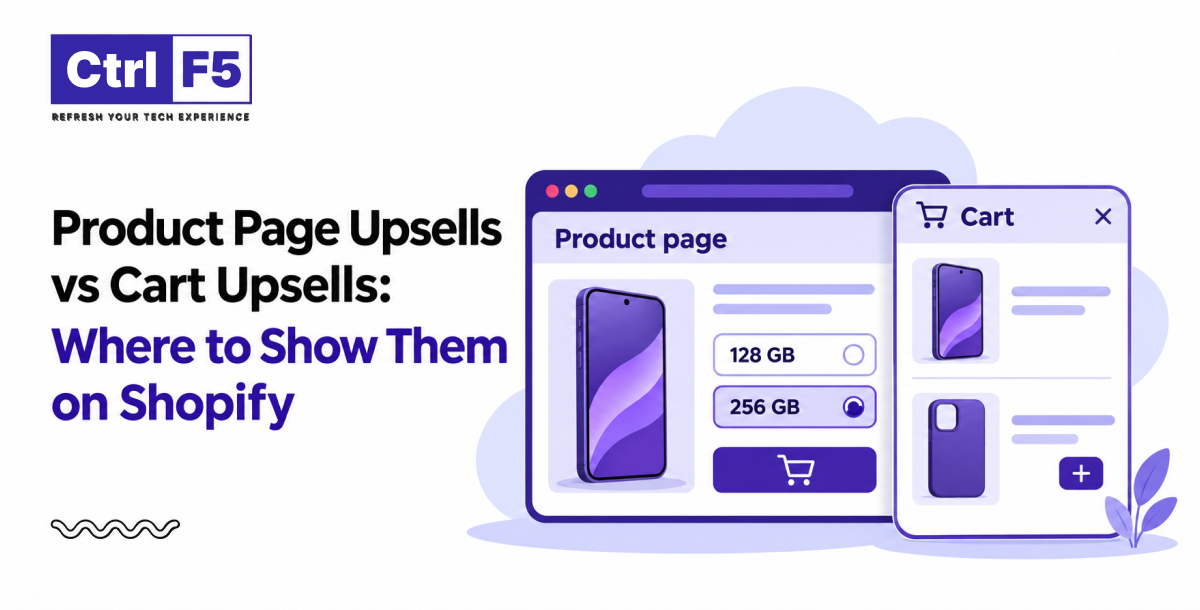
Most Shopify store owners I speak with already accept that upsells can lift order value. Where they get stuck is placement.

Think of a store in a busy market. Shoppers pick up products, load their baskets, and then put everything down by the door and walk away without paying. Any shop owner would want to know why.