

Subscribers are the customers every Shopify store owner wants. They come back on their own, they don’t need another ad to remind them, and they quietly push your monthly revenue up.
But none of that happens if the “Subscribe and save” option never shows up on the product page.
That’s the frustrating part about this problem. Nothing looks broken. Your subscription Shopify app says everything is active, your plans are saved, and your discount is ready.
Yet your customers only see the regular Add to cart button and buy once, the same way they always did.
The good news is that you rarely need a developer or a new Shopify app to solve this. Across the many Shopify stores my team has worked on, the cause usually turns out to be something small, like a product left out of a plan or a widget that was never placed on the page. Once you spot it, the fix often takes just a few minutes.
To understand the fix, you first need to know how subscriptions work on Shopify. It’s simpler than it sounds.
Every subscription on Shopify runs on something called a selling plan. Think of a selling plan as a set of rules attached to a product. It tells Shopify things like:
Your subscription Shopify app creates these selling plans. Then your Shopify theme has to display them on the product page in the form of a widget, usually a small box with “One time purchase” and “Subscribe and save” options.
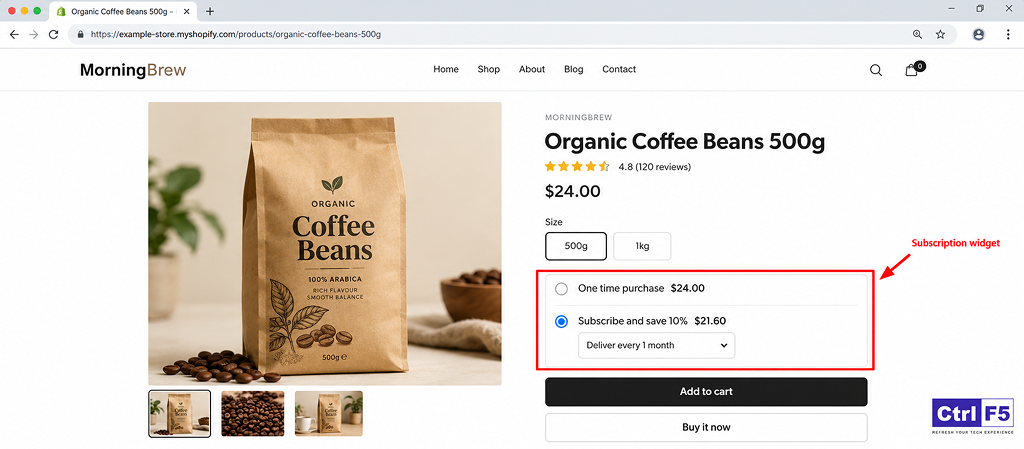
So the option your customers see on the product page depends on three separate pieces, and each one has its own job to do. When I see a Shopify subscription widget not showing, I already know one of these three links is missing. The job is just to find which one:
| Piece | What it does | What happens if it fails |
| Subscription Shopify app | Creates the selling plans | No plans exist, so nothing can show |
| Product | Gets linked to a selling plan | The plan exists, but this product isn’t part of it |
| Shopify theme | Displays the widget on the page | The plan is ready, but customers can’t see it |
Before you touch any code or contact support, spend five minutes on these basic checks. They solve the problem more often than you would expect.
If all of these look fine, move on to the causes below.
This is the most common reason by far. You create a subscription plan in the Shopify app, but the product never gets added to it. Sometimes a few products are added and others are missed, especially when new products are uploaded after the plan was created.
Shopify only shows subscription options on products linked to at least one selling plan. Without that link, the product acts like a normal item that can only be bought once.
Most subscription Shopify apps come with a setup process. If one part of it is skipped, the app may look installed but won’t actually work on your Shopify store.
Common steps that get missed include:
Some apps also make setup easier than others. If you’re still picking one or thinking about switching, take a look at my list of the best subscription Shopify apps, where I compare the options that work smoothly with most Shopify themes.
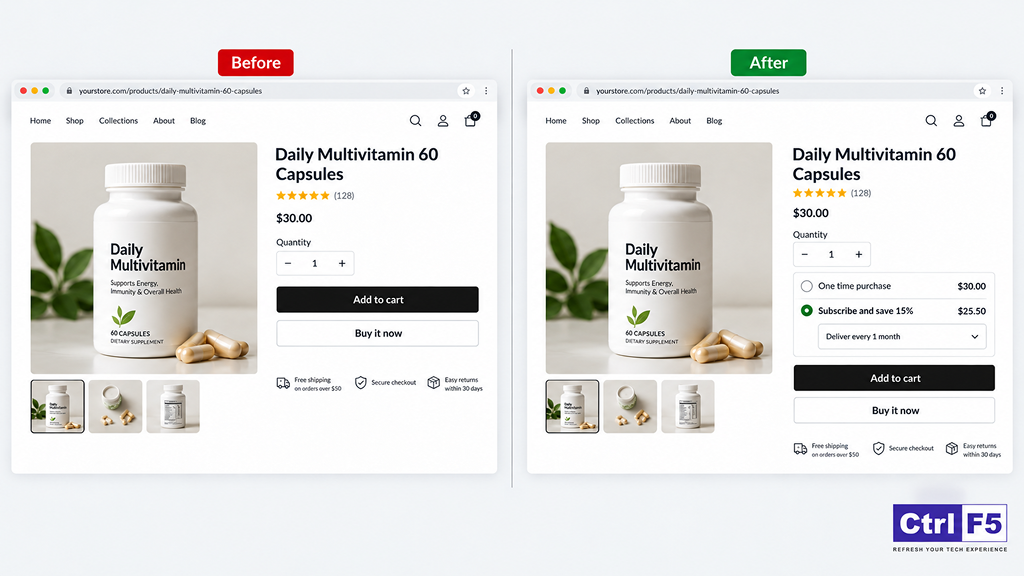
Modern Shopify subscription apps don’t paste code into your Shopify theme automatically anymore. Instead, they offer an app block, which is a small piece you place on the product page through the Shopify theme editor.
When that block is never placed, the selling plans exist in the background, but customers have no way to see them. This is one of the biggest reasons behind selling plans not showing Shopify merchants run into right after installing a new Shopify app.
This is where most Shopify subscription theme issues begin. Shopify themes fall into two groups:
| Shopify theme type | Supports app blocks | Why it matters |
| Online Store 2.0 themes (Dawn, Sense, Refresh and most newer paid themes) | Yes | Shopify apps can place their widget on the page easily |
| Older vintage themes (Debut, Brooklyn, Narrative and many older paid themes) | No | Shopify apps have no ready spot to place their widget |
If your Shopify store still runs on an older Shopify theme, the Shopify subscription app simply has nowhere to show its options.
Shopify lets you create more than one product template, so a Shopify store can have one layout for regular products and another for bundles or special launches. A common mix up is that the subscription widget sits on one template while the product uses another. The widget exists, but not on the page your customers are viewing.
This mismatch usually happens in a few common situations:
Some Shopify subscription apps let you attach selling plans to specific variants instead of the whole product. A coffee brand, for example, might offer subscriptions on the 500g bag but not the 1kg bag. That can be a smart setup, but it also makes the widget look unreliable if the customer doesn’t know only some variants are included.
Here is how this problem usually shows up on a product page:
Subscriptions need a payment method that can automatically charge the customer again every cycle, and not every payment gateway allows that. A one time purchase only needs one successful payment, but a subscription depends on charging the same customer again without asking them to go through checkout each time.
If your Shopify store uses a gateway that can’t handle recurring payments, you may notice these signs:
A supported gateway fixes the display side, but payments can still cause trouble later, like renewals that fail or orders that never get created. I’ve covered these and other Shopify subscription issues in my guide to Shopify subscription troubleshooting.
Sometimes every setting is correct, and the widget still doesn’t load. In these cases, another Shopify app or a piece of custom code is usually getting in the way. Common troublemakers include:
This group of Shopify subscription theme issues is the hardest to spot because nothing shows an error. The widget is just quietly missing.
Selling in multiple countries through Shopify Markets adds one more thing to check, because your subscription Shopify app has to support those markets and currencies too. When it doesn’t, customers in some countries may see the wrong price or may not get the same subscription experience. The tricky part is that the product page can look perfect from your own location, so you may not know about the problem until you check it as a customer from another country.
Here are the main things that can cause problems in a specific market:
Not sure which of these is causing your problem?
Finding the exact cause can take hours of trial and error. We can check your Shopify store, spot what’s hiding your subscription options, and get them showing again without touching what already works.
Here is the exact order my team follows when a client tells us their Shopify subscription widget not showing has become a problem. Go through it top to bottom and you will likely find the cause before you reach the end.
I always start with the Shopify subscription app because the widget depends on the plan behind it. If the plan is inactive or your product isn’t part of it, changes to your Shopify theme won’t bring the option back. A quick look through these settings will show you whether the problem starts here:
If your plan settings look messy or you’re not sure they were set up correctly in the first place, it may be easier to start fresh. My guide on how to set up subscriptions on Shopify walks you through the full setup from the very first step.
A correct plan still won’t reach your customers if nothing on the page displays it. The widget may have gone missing during a theme change, or it may never have been placed there at all. Here’s how to put it in the right spot:
Sometimes the widget is in place, but you can’t see it because you added it to one template while your product uses another. Use these steps to find the right template and fix it:
If you have several templates, add the widget to each one that subscription products use.
From what I have seen across hundreds of projects, moving to a newer Shopify theme saves a lot of headaches later, not just with subscriptions but with almost every modern Shopify app. An Online Store 2.0 theme lets you manage app blocks from the Shopify theme editor, so you don’t have to depend on code changes every time. Still, changing your Shopify theme is a bigger job, so the right choice depends on how happy you are with your current design and how much time you can give to the move.
If you’re on an older Shopify theme, you have two choices:
| Option | Good for | Things to keep in mind |
| Ask the Shopify app’s support team to add code manually | Shopify stores happy with their current design | Future Shopify theme edits may break it again |
| Move to an Online Store 2.0 theme | Shopify stores planning a refresh anyway | Takes more time but avoids many future problems |
When your plan, widget and template all look right, your payment setup is the next thing to check. Follow these steps to see if your current provider works with your subscription Shopify app:
1. Go to Settings > Payments in your Shopify admin.
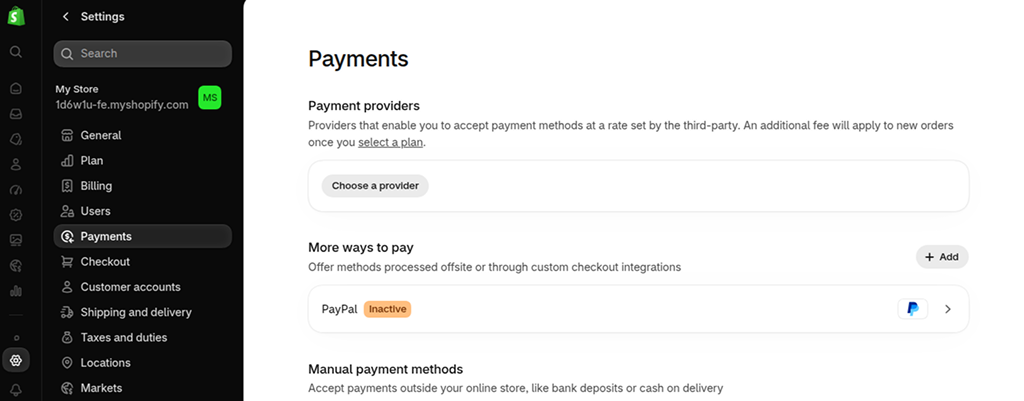
2. Check which payment provider is active.
3. Compare it with the list of supported gateways in your subscription Shopify app’s help docs.
4. If your gateway isn’t supported, consider turning on Shopify Payments or PayPal Express.
If you sell in more than one country, also check that buyers in each market see a supported option. My guide on Shopify payments by country shows how to control which methods appear where.
When you suspect a code conflict, never experiment on your live Shopifytheme, because a small change can affect the page your customers are using. A duplicate theme gives you a separate copy to test on, follow these steps:
1. Duplicate your live Shopify theme from the Shopify Themes page.
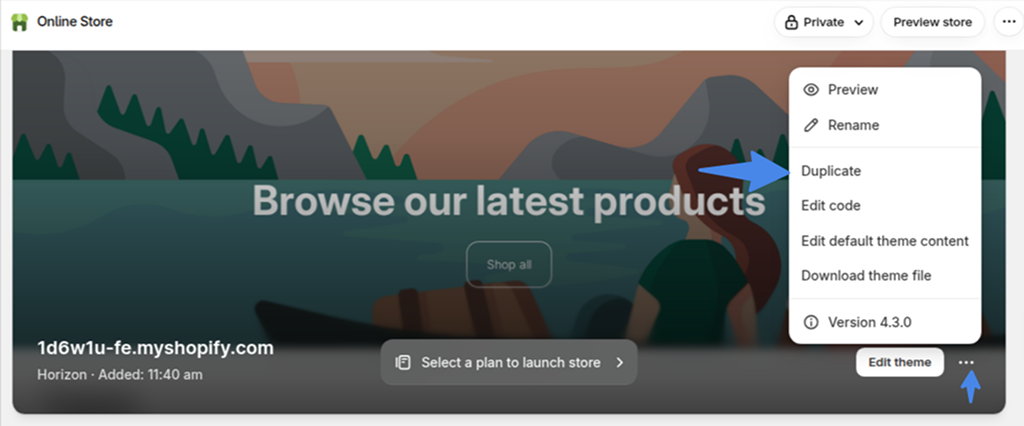
2. On the copy, add the widget to the product template.
3. Preview the product page.
4. If it works on the copy but not the live Shopify theme, a recent edit or Shopify app is the cause.
5. Turn off related Shopify apps one at a time on the copy until the widget appears.
This approach clears up most cases of selling plans not showing Shopify stores face due to code conflicts, without risking sales on your live site.
Stuck with Shopify theme code or app conflicts?
Older Shopify themes, page builders and custom code can make this fix tricky. We can add your subscription widget properly, sort out any conflicts, and test everything from the product page to checkout.
Fixing the problem once is good, but making sure it doesn’t come back is better. A Shopify store keeps changing as your business grows, so a subscription option that works today can go missing later without any warning. You don’t need a big process to stay on top of this, just a few simple routines that fit into your regular work. Here are the habits I recommend to every client:
A five-minute check after each change can save you from weeks of lost subscription sales you never knew about.
Getting customers to subscribe is only half the work. Keeping them subscribed matters just as much, and I’ve covered that in detail in why customers are cancelling their Shopify subscriptions, along with the common churn causes and how to fix them.
My team has helped many Shopify stores build subscriptions into the way their customers shop and buy again. These two projects are good examples of what that work looks like and the results it can bring:
BREO BOX: A subscription Shopify store built from scratch
BREO BOX had shipped almost 100,000 boxes, but its setup wasn’t built for recurring billing, plan changes or member self service. My team built a new storefront on the Broadcast theme and added Recharge from the start, so subscriptions felt like a natural part of the site. Members could pause, skip, swap or cancel their plans on their own. After this Shopify subscription store build, the conversion rate rose from 1.40% to 2.90%, and average order value grew from $58 to $74.
Katkare: Adding subscriptions during a Shopify store redesign
Katkare is a pet food brand that had no way for customers to sign up for regular deliveries. As part of a wider redesign, my team used Appstle to add subscriptions with recurring billing, delivery scheduling, discounts and custom frequency options. We also built a lighter custom Shopify theme and improved the product pages. After the new Shopify store went live, repeat purchases rose by 20% within 90 days, and overall sales grew by 25% in the first quarter.
Some fixes are simple drag and drop work that you can finish on your own in a few minutes. Others need someone who can read Shopify theme code, because one wrong edit can affect how your product page works. If you’re not sure which kind of fix you’re dealing with, these situations are a good sign that it’s time to bring in an Shopify expert:
At ControlF5, we fix missing subscription options every week. We set up selling plans correctly, add the widget to the right templates, fix Shopify theme and Shopify app conflicts, and test everything up to checkout. If your subscriptions still aren’t showing, get in touch with us here.
Question: Why is my subscription widget showing on some products but not others?
Answer: This usually means those products aren’t added to a selling plan, or they use a different product template that doesn’t have the widget. Check both the plan’s product list and the template assigned to each product.
Question: Do all Shopify themes support subscriptions?
Answer: All Shopify themes can work with subscriptions, but Online Store 2.0 themes make it much easier because you can add the widget through the Shopify theme editor. Older Shopify themes need manual code changes before the widget can appear.
Question: Can I offer subscriptions without a third-party app?
Answer: Yes. Shopify has its own free app called Shopify Subscriptions that handles basic subscription plans. For advanced features like custom portals, bundles or detailed analytics, most Shopify stores use apps such as Recharge, Seal or Appstle.
Question: Can I run two subscription apps at the same time?
Answer: It’s possible, but I don’t recommend it. Two Shopify apps trying to control selling plans on the same products often cause conflicts, missing widgets or confusing options for customers. It’s better to pick one Shopify app and stick with it.
Question: Will changing my Shopify theme remove my subscription plans?
Answer: No. Your selling plans live inside the subscription Shopify app, not the Shopify theme. Changing the Shopify theme only affects whether the widget shows on the page, so you just need to add the widget to the new Shopify theme.



Should a growing brand pay for a Shopify theme or stick with a free one? Here is how to decide based on what your Shopify store needs now and later.
Most Shopify subscription churn comes from small, fixable problems. Here are the 8 most common reasons subscribers cancel and how to fix each one.
Here’s how to customize your Shopify theme so every update keeps your design, your custom features and your app settings in place.