

Every big WordPress release gets a nickname honoring a legendary musician. This time, WordPress has rolled out version 7.0, named “Armstrong”, a tribute to jazz icon Louis Armstrong, fondly known as “Satchmo.”
Just like Armstrong turned jazz into something personal and expressive, WordPress 7.0 helps you shape your website in a way that feels distinctly yours.
This isn’t a routine update. It marks the start of WordPress’s AI-powered future, alongside a refreshed dashboard, smarter design tools, and a stronger toolkit for developers.
WordPress has been steadily improving with every major release. If you missed the previous update, take a look at the WordPress 6.9 Release to see the improvements that paved the way for many of the features introduced in WordPress 7.0.
Instead of relying on separate plugins for everything, WordPress now offers a built-in way to connect AI tools directly to your site.
Below, we break down everything new in plain language, along with exactly where to find each feature inside your dashboard.
The biggest headline of this release is native AI integration. WordPress now includes something called the AI Client, a built-in system that lets your website talk to AI models directly, no messy third-party setup required.
Paired with the existing Abilities API, this opens the door to automation, smart content suggestions, and AI-powered workflows right inside the block editor.
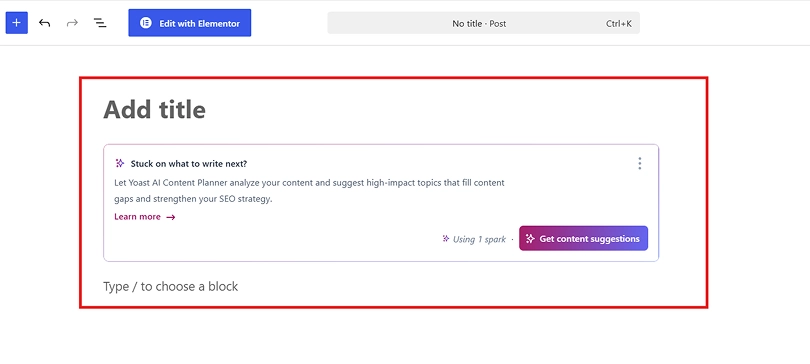
There’s also an optional AI plugin that adds handy tools like:
For those who prefer working in JavaScript, 7.0 introduces a Client-Side Abilities package, complete with its own command palette and UI, giving developers a way to build hybrid AI-powered features on the front end too.
How to access it:
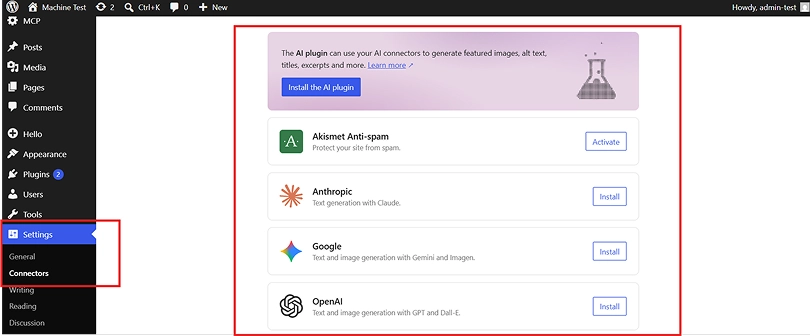
Managing outside services used to mean digging through separate plugin settings. WordPress 7.0 fixes this with the new Connectors screen, a single place to manage every external integration, AI tools included.
Any plugin that needs to communicate with an external service can now plug into this same system, reducing clutter and providing a more consistent experience for site owners and developers alike.
How to access it: Head to Settings → Connectors in your dashboard. From here, you can view, add, edit, or remove any connected service in one screen.
Open your dashboard after updating, and you’ll immediately notice the difference. WordPress 7.0 brings a cleaner, more contemporary look with:
It’s a subtle change, but it makes the entire admin experience feel calmer and more polished.
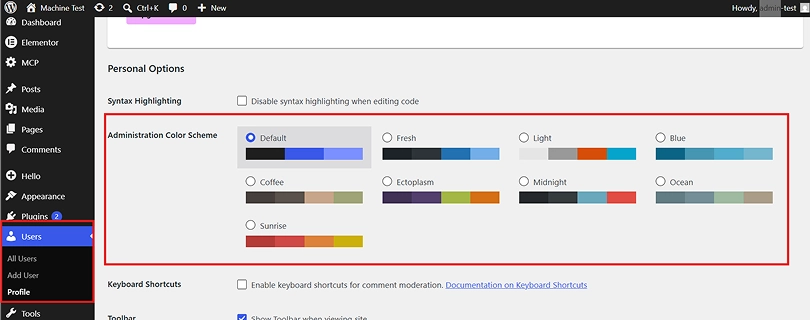
How to access it: No setup needed, this new look applies automatically the moment you update to WordPress 7.0. You can still switch color schemes under Users → Profile → Admin Color Scheme.
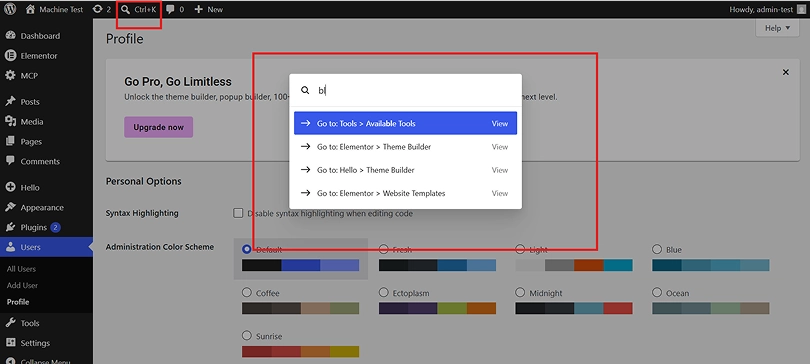
Tired of clicking through menus to find a setting? WordPress 7.0 adds a Command Palette, a searchable shortcut box that lets you jump straight to any tool or page in your dashboard.
How to access it: Press Ctrl + K (Windows) or ⌘ + K (Mac), or click the small palette icon in the top admin bar. Start typing what you need, and WordPress will show you matching pages, settings, or actions.
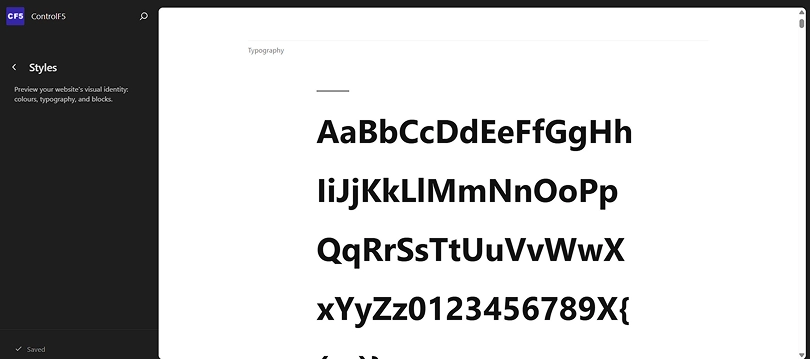
Previously, the Font Library was only available if you used a block theme. Now it works across all themes, block, hybrid, and classic.
You can browse, install, and manage fonts from one dedicated screen, regardless of which theme powers your site.
How to access it: Go to Appearance → Editor → Fonts (or Appearance → Design → Fonts, depending on your theme). From there, browse the built-in library or upload your own font files.
Reviewing old versions of a post used to mean scrolling through plain text comparisons. Now, WordPress shows you a visual timeline slider with block-by-block markers, so you can literally see what changed and where.
How to access it: Open any post or page, click Post → Revisions in the sidebar (or the revisions link near the publish panel), and drag the slider to scrub through past versions. Click Restore to bring back any version instantly.
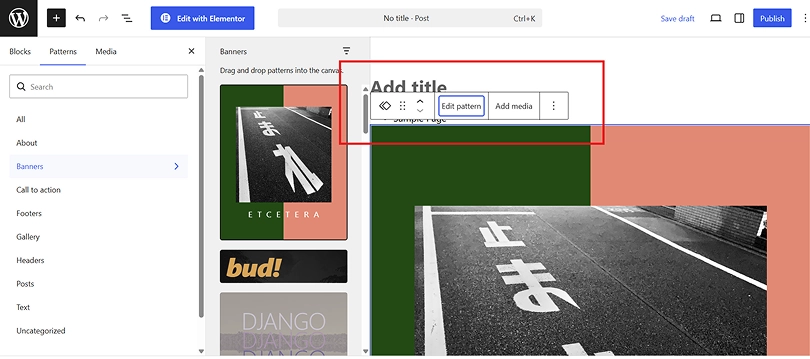
Adding a pattern to a page used to mean navigating through several nested blocks just to tweak one small thing. In 7.0, a pattern now acts as one single block on the surface.
You can swap text and images and adjust styles right from the inspector panel, no digging required.
Need deeper control? Just click “Edit pattern” to unlock the full block structure.
How to access it: Open the block inserter (the + icon in the editor), pick any pattern, and drop it onto your page. Use the panel on the right for quick edits, or click Edit pattern for advanced changes.
Mobile and overlay menus finally get a proper design canvas. You can now add columns, resize fonts, and align content freely inside your site’s navigation overlay, or start from a ready-made template.
How to access it: Go to Appearance → Editor → Navigation, select your navigation menu, and open the overlay settings to customize its layout and style.
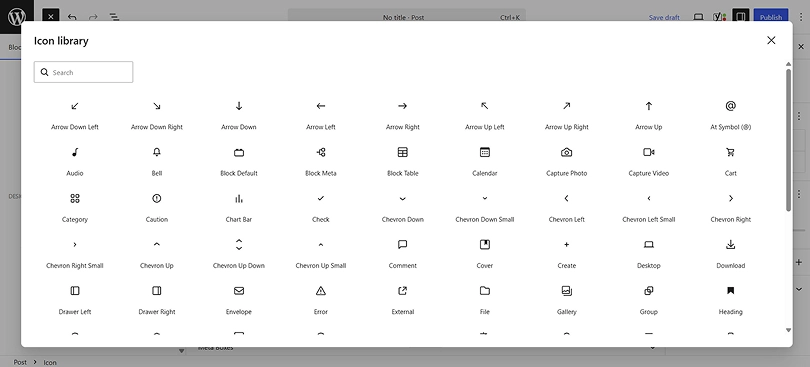
WordPress 7.0 adds a handful of new blocks to expand your design options, including an Icon block for adding scalable icons anywhere on your page, pulled from a built-in icon library and fully stylable to match your branding.
Combined with improved responsive controls, you can now choose which blocks show up at different screen sizes, handy for building cleaner mobile layouts.
How to access it: Open the block inserter and search for Icon to add it. For responsive visibility, select any block, open the Advanced panel in the settings sidebar, and choose which screen sizes it should appear on.
Performance and accessibility both got quiet but meaningful upgrades: smarter image-loading priority stops hidden images (like those inside menus) from slowing down important content, classic themes get more reliable on-demand stylesheet loading, and scripts can now depend on script modules to cut down render-blocking.
On the accessibility side, fixes span media management, voice control usability, and color contrast across the new admin theme. None of this needs setup, it’s built straight into the core update.
If you’re planning ongoing WordPress development after upgrading, it’s also worth comparing the cost of hiring a WordPress developer in-house vs a white-label partner. Understanding the long-term investment can help agencies and businesses choose the most cost-effective development model.
| Feature | What It Does | Where to Find It |
| AI Client & Connectors | Connects your site to AI providers and tools | Settings → Connectors |
| AI Plugin | Generates titles, excerpts, images, and alt text | Plugins → Add New → Search “AI” |
| Command Palette | Quick-access search for dashboard tools | Ctrl + K / ⌘ + K |
| Visual Revisions | Timeline slider to review and restore edits | Post sidebar → Revisions |
| Font Library | Manage fonts across all theme types | Appearance → Editor → Fonts |
| Pattern as Single Block | Simplifies editing of patterns | Block Inserter → Choose Pattern |
| Navigation Overlay Designer | Custom mobile/overlay menu design | Appearance → Editor → Navigation |
| Icon Block | Adds styled icons to your page | Block Inserter → Search “Icon” |
WordPress 7.0 also hands developers a stronger set of building blocks: server-side block and pattern registration lets you create blocks using pure PHP, auto-registered through the Block API with no build tools needed for basic use cases.
The Site Editor is now more extensible too, with new routing and route validation for building custom admin pages, and the fresh wordpress/boot package lets plugin developers create their own custom site-editor pages from scratch.
| Developer Feature | Purpose | How to Start Using It |
| Server-Side Block Registration | Build blocks/patterns using only PHP | Register via the Block API in your plugin’s functions.php or plugin file |
| Site Editor Routing | Build custom pages inside the Site Editor | Use the new routing functions in your plugin code |
| wordpress/boot Package | Create custom site-editor experiences | Install via npm and reference it in your plugin’s build setup |
| Client-Side Abilities API | Add JS-based AI abilities with built-in UI | Enqueue the package and register abilities via JavaScript |
For complete technical documentation, the official WordPress 7.0 Field Guide is the best starting point for WordPress developers who want in-depth code references.
New developer features are only valuable when they’re applied to real projects. At ControlF5, we regularly build custom WordPress solutions that balance performance, flexibility, and long-term scalability. See how we built Matthew Hunt Studios’ WordPress website from scratch, creating a fully custom website tailored to the client’s brand and business goals.
Reading about new features is one thing, hearing from developers who actually build on WordPress every day is another. We asked our in-house team at ControlF5 to share their honest take on WordPress 7.0.
“The AI Client and Connectors hub is the update I’ve been waiting for. Until now, connecting AI tools meant stitching together two or three separate plugins, each with its own settings and quirks. Having one standardized hub inside core makes client projects faster to set up and much easier to maintain long-term.”
— Vinay Patidar, Senior WordPress Developer
“As someone who works closely with the block editor daily, the pattern-as-single-block change is a small detail that saves a lot of time. Clients often struggle when a pattern breaks into ten nested blocks the moment they try to edit it. Now it just works the way people expect, and that means fewer support tickets and happier clients.”
— Pranjal Jaiswal, WordPress Developer
Feedback like this is exactly why we keep our team hands-on with every major WordPress release; real-world testing tells you far more than a changelog ever can.
Every major WordPress update brings new opportunities to improve website performance, usability, and scalability. Our team applies these best practices to real client projects, not just during upgrades, but also when rebuilding websites that have outgrown their existing setup. Read how ControlF5 transformed Plusbaby’s broken WordPress website into Switzerland’s go-to wellness brand online, improving speed, user experience, and long-term maintainability.
WordPress 7.0 “Armstrong” isn’t just a cosmetic update; it’s a genuine shift toward an AI-assisted, more flexible way of building websites. Whether you’re a blogger who wants smarter content tools, a business owner who wants a cleaner dashboard, or a WordPress developer who wants more control under the hood, this release has something built specifically for you.
If you want to explore every technical detail, the official release notes and field guide are the best places to dig deeper:
Ready to update? Head to your dashboard, go to Dashboard → Updates, and click Update Now to start building with WordPress 7.0 today.
At Control F5, we’re a white-label WordPress agency, helping businesses and other agencies update, customize, and manage their websites without the guesswork. New releases like Armstrong bring exciting features, but also plugin conflicts, theme compatibility questions, and AI setup decisions that aren’t always straightforward.
If you’d rather have an expert handle it, book a free consultation with our team, and we’ll help you understand what WordPress 7.0 means for your specific website and resolve any update-related concerns.



Below are 10+ of the best white label WordPress agencies in the USA, picked using things you can actually verify: Clutch ratings, founding years, real named clients, and what they specialize in. No fluff, no “trust us.”
The real cost of hiring a WordPress developer in-house is rarely just the salary; with benefits, tools, and overhead added in, a mid-level in-house WordPress developer typically costs $2,500 – $3,000/month (~$30,000 – $36,000/year).
As the founder of a WordPress development agency, I work with WordPress every day, building, optimizing, and supporting websites for clients across different industries.