



I have worked on hundreds of Elementor websites, and I know the pain of watching a beautiful design load slowly.
Clients often say, “My website looks amazing, but it just isn’t fast enough.”
That’s when my team and I help. At ControlF5, we specialize in WordPress Elementor speed optimization, helping businesses transform slow sites into smooth, responsive, and high-performing platforms.
Website speed isn’t just a technical issue; it’s the foundation of online success. A slow wordpress website’s pages hurts SEO rankings, lowers conversions, and frustrates visitors.
Over time, my team has built a reliable process with fast-loading Elementor website tips and tested methods to consistently speed up WordPress Elementor sites.
In this blog, I will walk you through exactly how we do it.
When it comes to WordPress, Elementor builder is one of the most popular page builders. It allows creative freedom, drag-and-drop design, and countless widgets.
But here’s the truth: without Elementor performance optimization, all those features can slow down your WordPress website.
Why does speed matter?
Because visitors don’t wait. A website that takes more than 3 seconds to load often loses traffic and sales.
My team has seen conversion rates jump significantly after just a few small Elementor speed optimization tweaks.
Still comparing in WordPress builders’ options? If you’d like to explore alternatives beyond Elementor, here’s our review of the 8 Best Drag and Drop WordPress Builders 2025.
If you have ever wondered how to speed up WordPress Elementor or asked yourself, “Does Elementor Plugin slow down your website?”. You are not alone. After working on hundreds of WordPress Elementor website designs, here’s what I have learned:
Small tweaks, big impact, that’s how you make WordPress Elementor fly.
— Anurag Pandey
Founder, ControlF5
Here’s the exact process my team follows whenever we optimize WordPress Elementor websites.
I will also share some real issues my clients have faced and how we solved them directly in Elementor.
Your hosting choice sets the foundation of your WordPress website’s speed. Shared hosting is often slow, especially with Elementor’s dynamic content.
I once had a client running a real estate website on a cheap shared host; pages took 9 seconds to load. After moving them to Hostinger for website speed, the load time dropped to under 3 seconds.
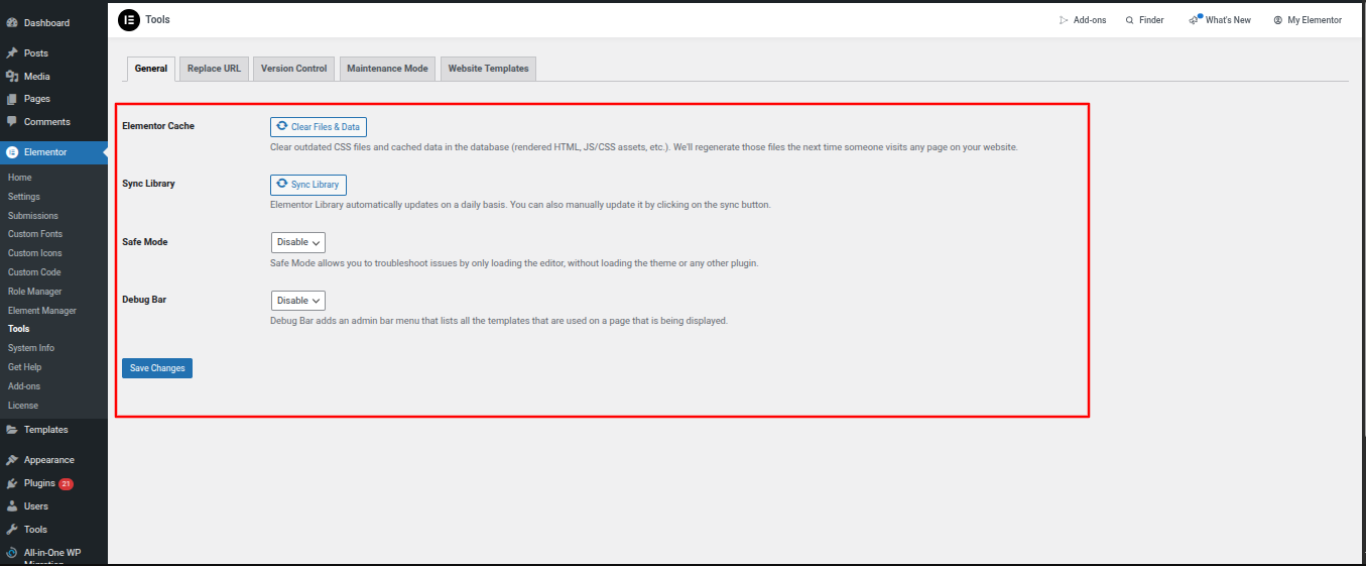
In Elementor: After switching hosting, go to Elementor → Tools → Regenerate CSS & Data so your website rebuilds clean cache. Also, check Elementor → Settings → Experiments and disable unused experiments to reduce load.
A bloated theme adds extra code that Elementor doesn’t need. A client once insisted on using a premium multipurpose theme that had 50+ features.
The website looked pretty, but performed poorly. We switched them to Hello Elementor, a lightweight theme for Elementor, and the performance score jumped from 55 to 92 in Google PageSpeed Insights.
In Elementor: After activating a lightweight WordPress Elementor theme, simplify your layouts. Avoid stacking too many inner sections; use columns wisely.
In Elementor Editor → Navigator, you can quickly spot and clean up unnecessary layers.
Choosing the right theme makes or breaks site speed.
If you’re curious which ones my team recommends, here’s a roundup of the 15+ Best WordPress Elementor Themes for 2025 (Free & Premium) that pair beautifully with Elementor.
Images are usually the biggest culprit.
One of my eCommerce clients uploaded 5MB product photos straight from their camera.
The WordPress Elementor website barely loaded. We set up automatic compression and converted images to WebP, solving the issue instantly.
That’s why it’s so important to optimize the images in Elementor WordPress.
In Elementor: When adding an image widget, don’t use “Full Size” unless required. Instead, choose the right size (Medium/Large).
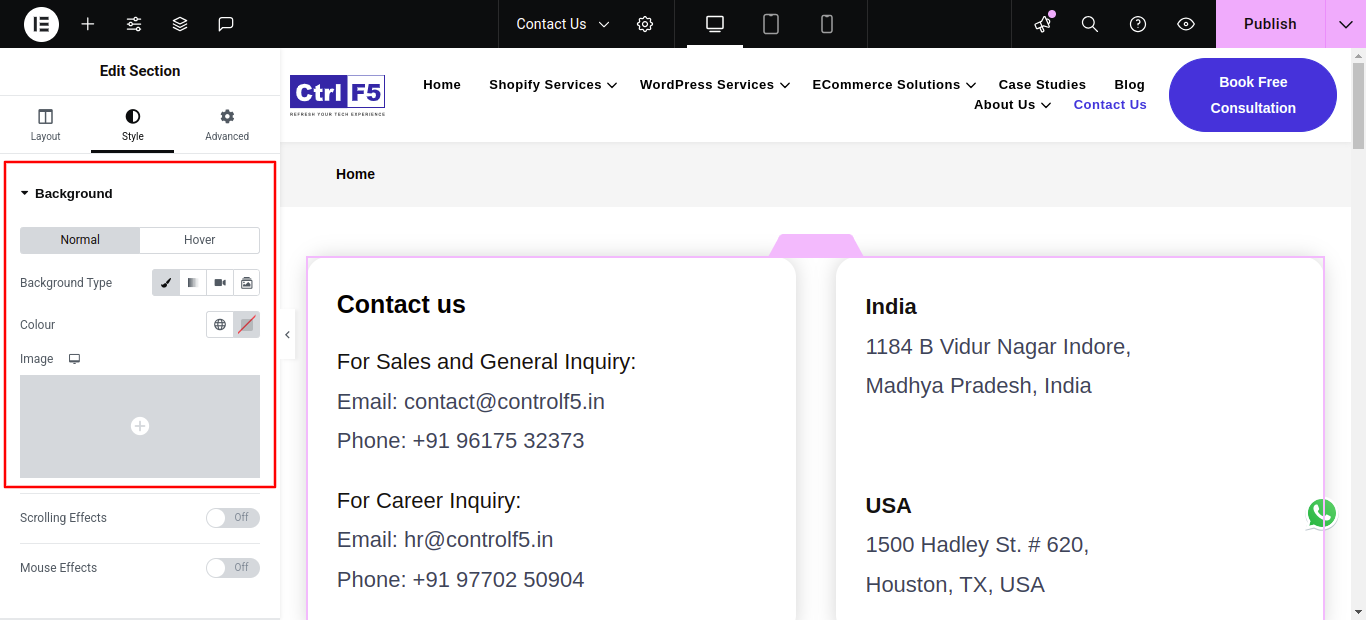
For background images, go to Section → Style → Background and upload optimized WebP images.
Extra CSS/JS slows things down. I had a client complain that every button click felt “laggy.” After enabling minify CSS, JS Elementor settings through WP Rocket, the website became smooth and responsive.
In Elementor: Go to Elementor → Settings → Advanced. Enable “Improve DOM Output” and set CSS Print Method → Internal Embedding.
This ensures CSS loads faster and reduces render-blocking issues.
Clean code is key, but landing page structure matters too. Want more ideas on boosting conversions while staying fast?
Don’t miss our Step-by-Step Guide to Optimizing WordPress Landing Pages in Elementor.
If your WordPress website serves global traffic, a CDN is non-negotiable. I worked with a client in the U.S. who had many visitors from Asia.
Their website took 7 seconds to load overseas. After adding a CDN for Elementor website speed, international users saw the site load in 2 seconds.
In Elementor: Once you connect a CDN (e.g., Cloudflare), clear Elementor’s cache in Elementor → Tools → General → Regenerate CSS.
Then test with GTmetrix in multiple regions to confirm global speed improvements.
I often see clients installing 25–30 plugins “just in case.” One photography website I worked on had three slider plugins, even though Elementor already had a slider widget.
That bloated setup slowed down the website until we removed unnecessary plugins. By keeping only essentials, we were able to reduce Elementor WordPress plugins and cut the load time in half.
In Elementor: Replace extra plugins with Elementor’s built-in widgets where possible (Forms, Sliders, Testimonials, etc.).
Also, in Elementor → Settings → Experiments, disable widgets you don’t use to reduce backend load.
Fonts can be silent performance killers. A client once added 10 Google Fonts to their website because they wanted each section to look different.
It took forever to load. After reducing to 2 fonts and preloading them, the WordPress website instantly felt faster. Choosing fewer fonts is one of the best Elementor settings for speed.
In Elementor:
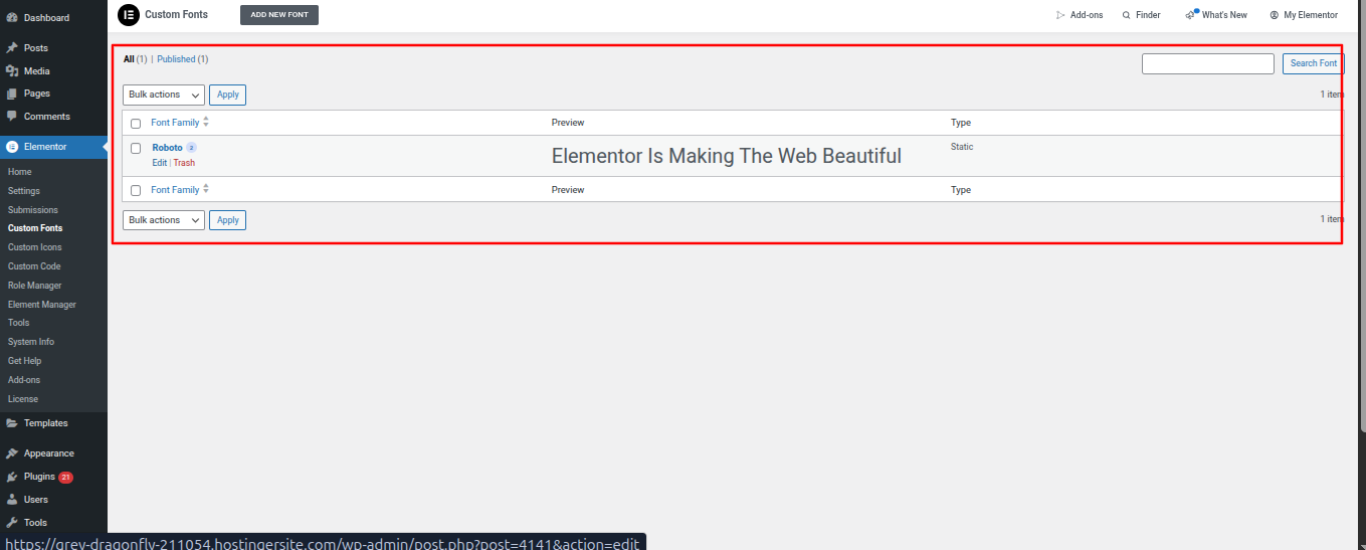
Go to Site Settings → Typography and set global fonts.
This avoids multiple font calls. For icons, use Elementor’s built-in Icon Library instead of third-party packs that load heavy scripts.
Without lazy loading, your WordPress website tries to load every image and video at once, even those hidden below the fold.
I worked with a travel blogger whose homepage had 100+ photos. It took forever to load. By enabling lazy-loading images in Elementor, the visible content is loaded first, and the rest only appears as users scroll. The website felt instantly faster.
In Elementor: For videos, open the Video widget and enable “Lazy Load.” For image galleries, use Elementor’s default gallery widget (it works with WordPress’ built-in lazy loading).
Always test on mobile to make sure media loads smoothly.
Starting from scratch?
No worries, here’s a complete resource on how to create a WordPress Website in Elementor Builder 2025 that walks you through setting it up the right way.
When clients want next-level performance, my WordPress experts go deeper into Elementor and server settings.
Elementor needs more resources than a standard WordPress setup. I have seen clients unable to open the editor until we increased PHP memory and execution time.
This small adjustment often fixes troubleshooting slow Elementor website issues instantly.
Fonts and CSS can delay content from showing. By preloading them, we make the WordPress Elementor website feel faster.
One client’s homepage went from showing a blank screen to loading instantly after this advanced Elementor speed tweak.
Beyond plugins, server-level caching and GZIP reduce load times dramatically.
I worked with a WooCommerce client whose website was sluggish during sales.
After enabling these, pages loaded 70% faster.
Elementor loads assets you may never use. By disabling extra widgets, we reduced unnecessary scripts and improved performance. It’s a simple but powerful way to speed things up.
Whenever I am asked about troubleshooting slow Elementor website setups, I remind clients that all these advanced steps often make the biggest difference.
Speed is one side of the coin; SEO is the other. If you’re looking to rank higher while keeping things fast, check out our WordPress Elementor SEO Optimization Guide 2025
One of my recent projects was for an eCommerce business where the website initially took almost 8 seconds to load.
Visitors were dropping off before even seeing the products. After applying proven fast-loading Elementor website tips, including image optimization, caching, and plugin cleanup, the load time dropped to just 2.5 seconds.
The difference was dramatic, not only in speed but also in business results.
Here are the results we achieved:
| Metric | Before Optimization | After Optimization |
| Page Load Time | 8.1s | 2.5s |
| Google PageSpeed Score (Mobile) | 48 | 91 |
| Conversion Rate | 1.30% | 2.90% |
This transformation proves that Elementor speed optimization is not just about technical performance; it directly impacts conversions and revenue growth.
ControlF5 Website Performance Results
We don’t just optimize client websites, we also apply the same strategies to our own. The ControlF5 website is a live example of what happens when performance optimization is done right.
Our website achieves a 91 performance score, with a First Contentful Paint of just 0.5 seconds and a Largest Contentful Paint of only 0.7 seconds. The Total Blocking Time is just 40ms, while the Cumulative Layout Shift remains almost negligible at 0.006. Even interaction is lightning fast, with an INP of 81ms.
These results show how speed-focused optimization creates an almost instant browsing experience, ensuring smooth interactions and keeping visitors engaged from the very first click.

More Client Success Stories
Just like this, we’ve helped businesses across industries achieve faster, more engaging websites:
These projects, along with many others, show how combining Elementor performance optimization with creative design builds websites that are both beautiful and fast.
Impressed by these results?
This is exactly why homepage design matters. If you’d like more inspiration, explore our guide on How to Design a High-Converting Homepage Using Elementor.
At the end of the day, a website should be both visually appealing and lightning-fast. By following these strategies, applying advanced Elementor speed tweaks, and using WordPress caching for Elementor, you can achieve the perfect balance of design and performance.
I have seen these methods work across industries, from small businesses to large eCommerce brands.
If you’re struggling with troubleshooting slow Elementor wordpress website issues, my ControlF5 team and I can help you transform your wordpress website into a fast, high-converting machine.
Ready to take your WordPress Elementor website to the next level?
Book a Free Consultation with us today. Let’s discuss your challenges and create a personalized speed optimization plan.
Or, if you already know what you want, you can directly hire a WordPress Elementor Expert and let’s make your WordPress website both beautiful and blazing fast.
1. How can I test the speed of my WordPress Elementor website?
I use GTmetrix, PageSpeed Insights, and Pingdom for accurate results. These tools highlight areas needing Elementor performance optimization.
2. Do WordPress Elementor websites always load slower than custom-coded sites?
Not necessarily. With the right fast-loading Elementor website tips, your site can perform as well as custom-coded websites.
3. Which hosting is best for WordPress Elementor performance?
From my experience, Hostinger hosting for speed or cloud-based hosting solutions work best.
4. Can free plugins improve WordPress Elementor website speed?
Yes, but premium tools like WP Rocket often deliver more reliable WordPress caching for Elementor.
5. How do I balance design features with speed optimization?
The trick is to keep animations and widgets minimal while focusing on the best Elementor settings for speed.


As the founder of a WordPress development agency, I work with WordPress every day, building, optimizing, and supporting websites for clients across different industries.

The Shopify Black Friday Cyber Monday Playbook 2025 is your go-to resource for preparing, promoting, and profiting during the most competitive eCommerce season of the year.
Running a WordPress website in 2026 without the right SEO plugin is like driving a car without a GPS; you might move forward, but you’ll probably miss the best route to your destination.